Managing Users
Invite team members, assign roles, and manage user access within your organization.
Overview
User management allows administrators and managers to:
- Invite new users to the organization
- Assign and modify user roles
- Remove users from the organization
- View user activity and status
Accessing User Management
Navigate to Settings > Users & Teams from the main dashboard, or access during initial setup at Setup > Users & Teams.
The user management button opens the user management board:
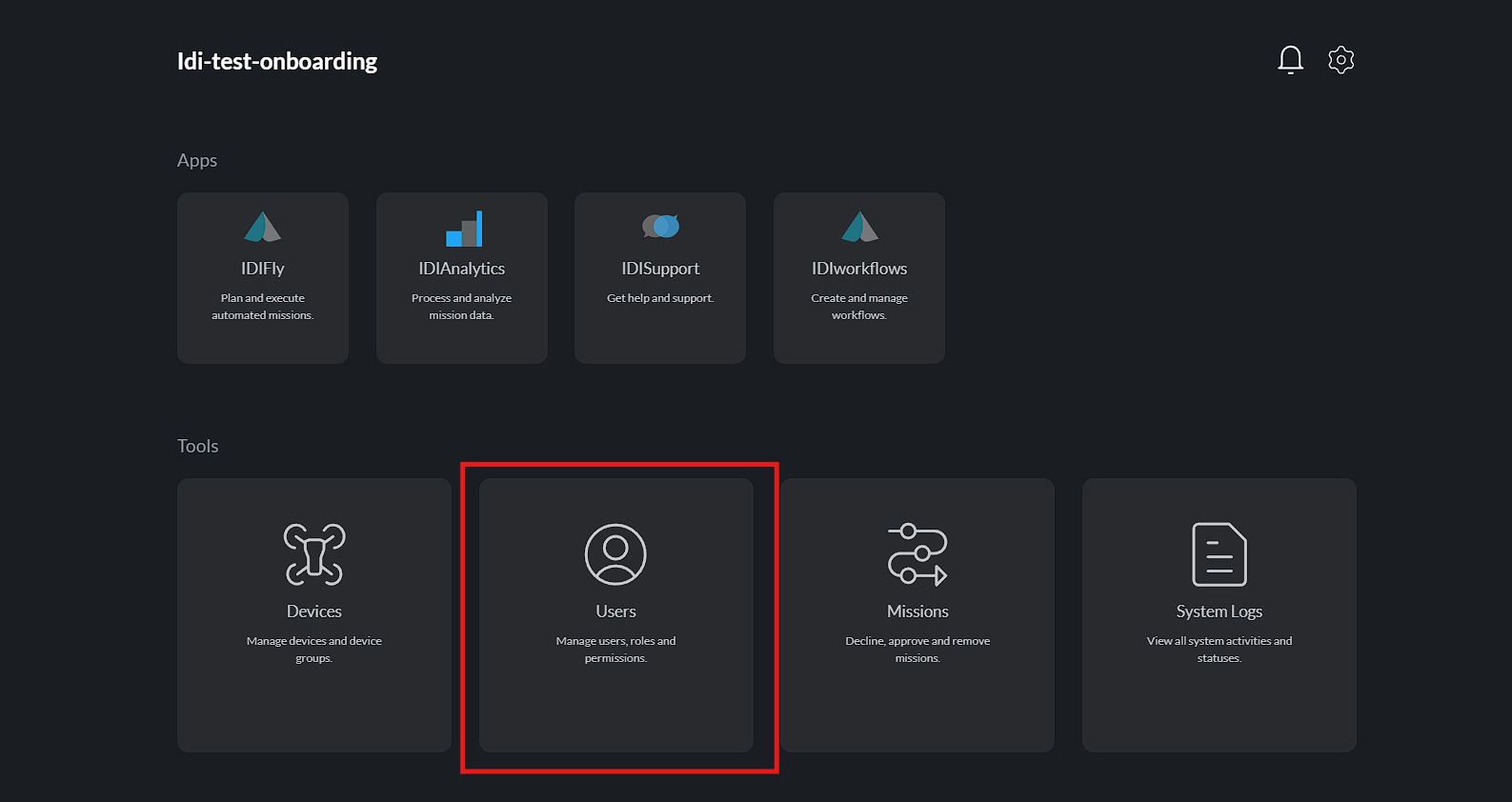
User List
Viewing Users
The user list displays all organization members:
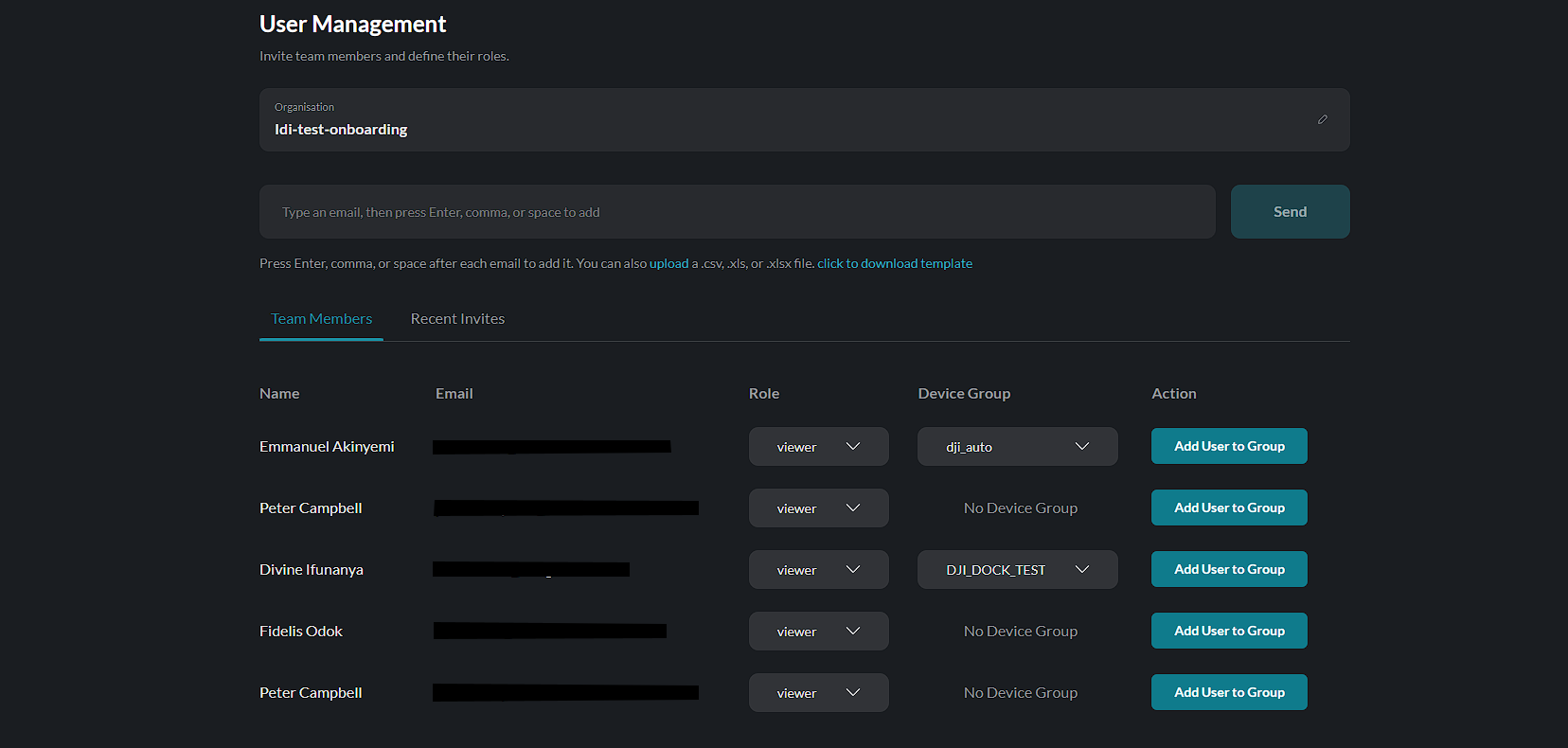
| Column | Description |
|---|---|
| Name | User's full name |
| Registered email address | |
| Role | Assigned permission level |
| Status | Active, Pending, Inactive |
| Last Active | Most recent activity |
Filtering Users
Filter the user list by:
- Role - Show specific role
- Status - Active, pending, or inactive
- Search - Find by name or email
Sorting
Sort users by:
- Name (A-Z, Z-A)
- Role
- Status
- Last active date
Inviting Users
Send Invitation
Click the Invite User button to open the invitation form:
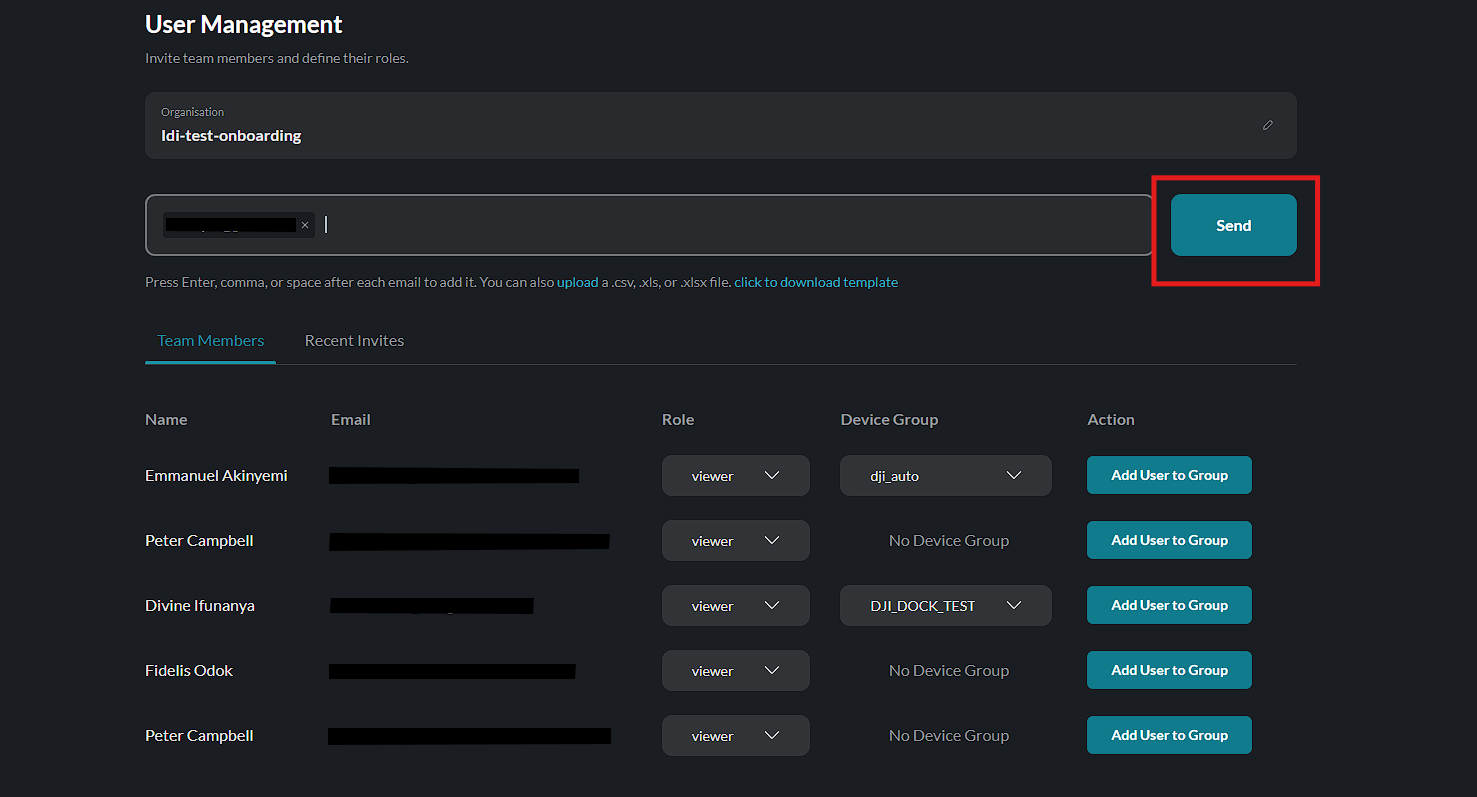
- Enter the user's email address
- Select a role for the user
- Optionally add a personal message
- Click Send Invitation
Invitation Process
When you send an invitation:
- User receives email with invitation link
- Link directs to EULA acceptance
- User creates password
- User sets up profile
- User gains access based on assigned role
Invitation Status
All sent invitations and their current status are displayed on the invitations board:
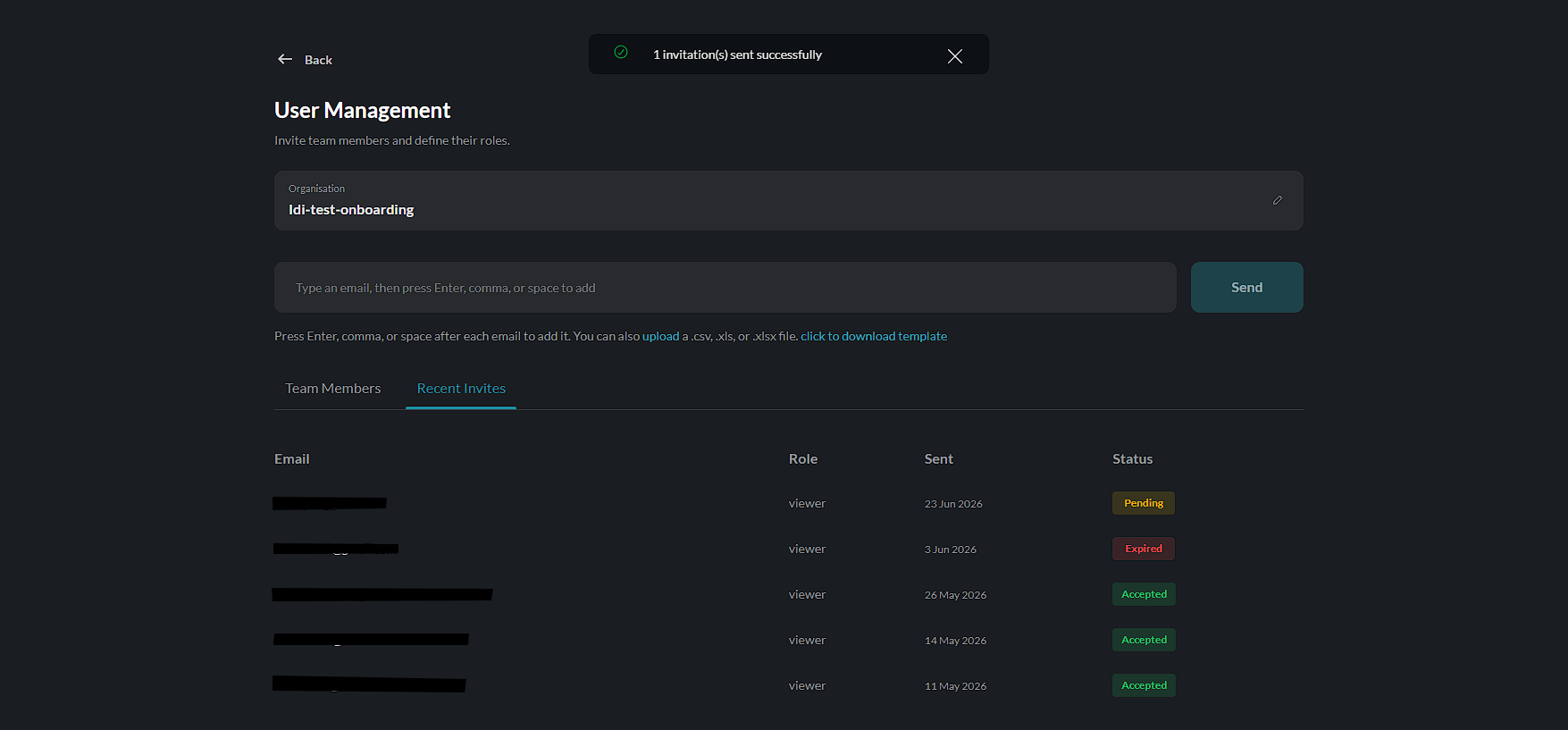
| Status | Meaning |
|---|---|
| Pending | Invitation sent, not yet accepted |
| Accepted | User completed setup |
| Expired | Invitation link expired (7 days) |
Resend Invitation
For pending invitations:
- Select the pending user
- Click Resend Invitation
- New email sent with fresh link
User Roles
Role Descriptions
| Role | Permissions |
|---|---|
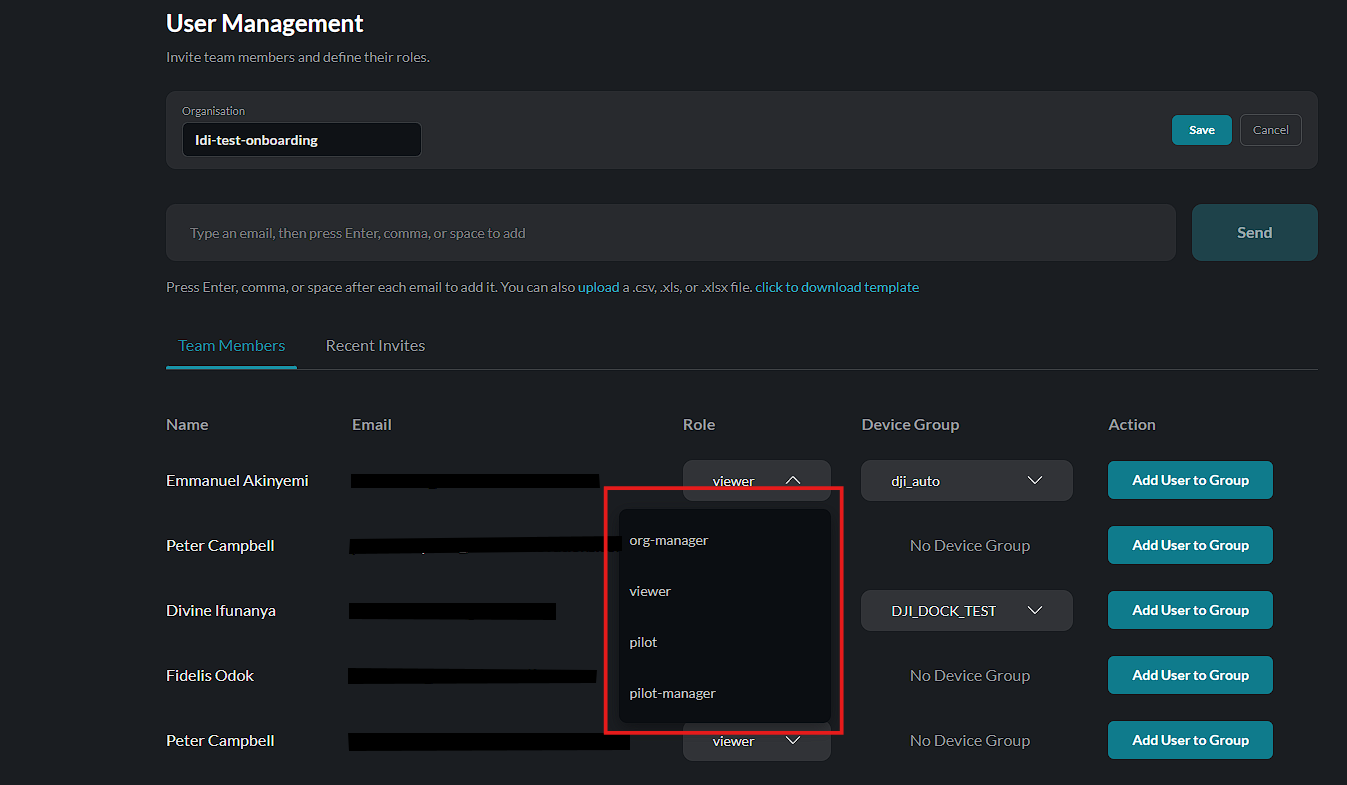
| Viewer | View flights, analytics, media (read-only) |
| Pilot | All Viewer + control aircraft, execute missions |
| Manager | All Pilot + manage users, configure settings |
| Admin | Full access including administrative functions |
Assigning Roles
Select a user and choose a role from the role assignment panel:
- Select user from list
- Click Edit or Change Role
- Select new role
- Click Save
Role Hierarchy
Higher roles include all permissions of lower roles:
Admin > Manager > Pilot > Viewer
Managing Groups
Organize users into groups for streamlined permission and access management.
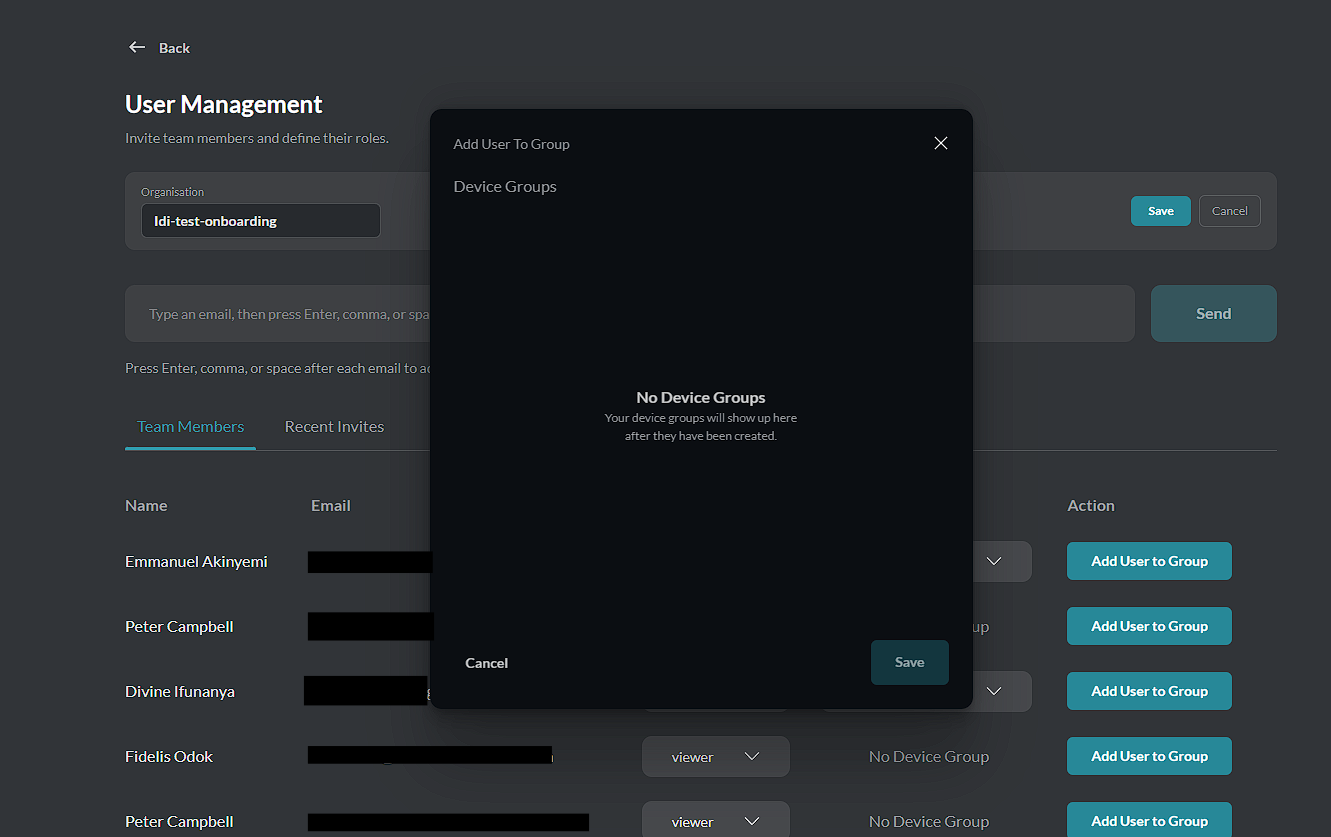
Assigning Groups
If no groups have been created yet, the group assignment panel shows an empty state:
Creating Groups
- Navigate to Settings > Users & Teams
- Go to the Groups tab
- Click Create Group
- Enter a group name and description
- Click Save
Adding Users to a Group
Once groups are created, you can assign users from the user management board:
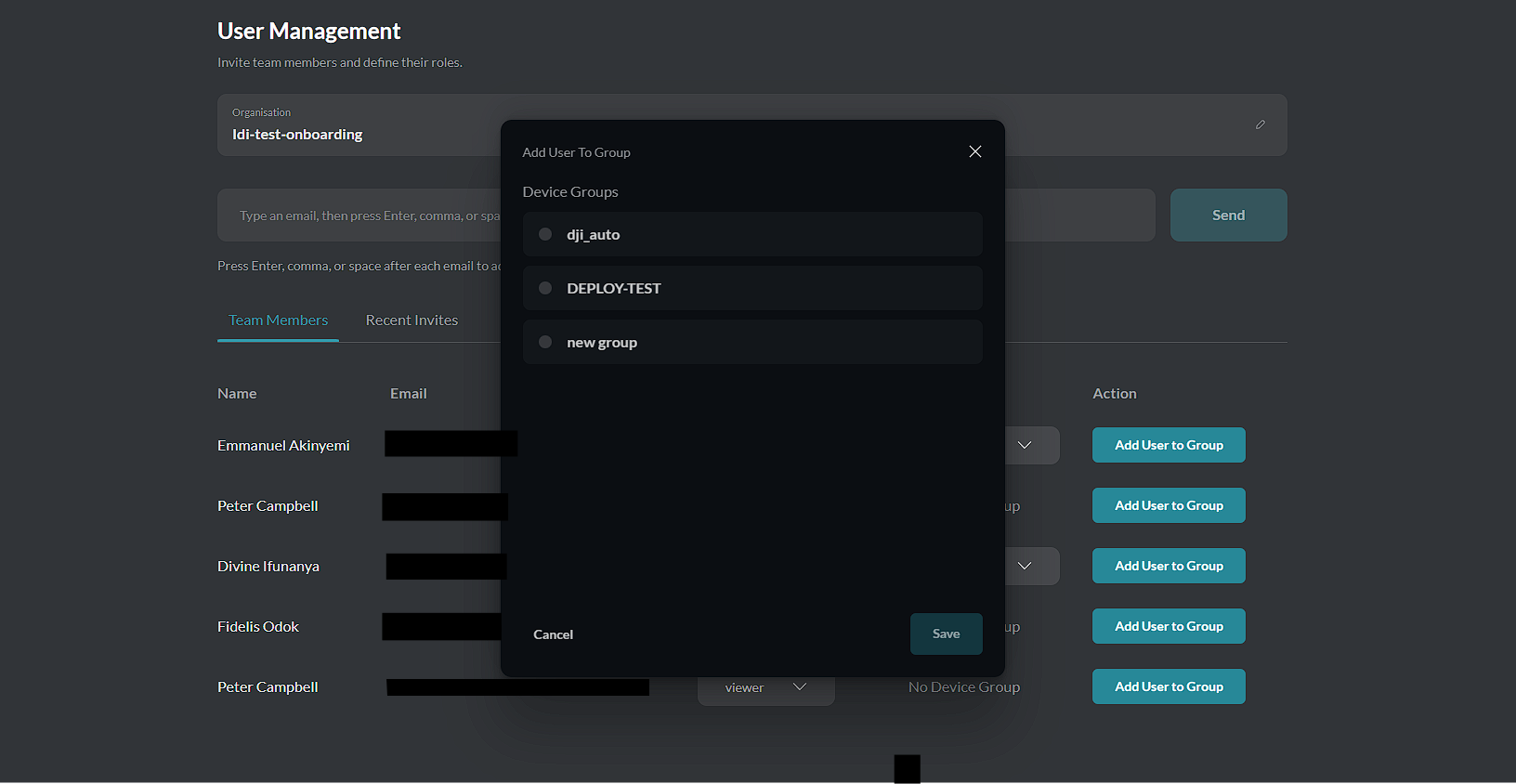
- Select a user from the list
- Click Manage Groups
- Select the target group
- Click Save
Modifying Users
Edit User Details
- Select user from list
- Click Edit
- Modify available fields
- Click Save Changes
Editable Fields
| Field | Who Can Edit |
|---|---|
| Name | User (self) |
| Role | Manager/Admin |
| Status | Manager/Admin |
Changing User Role
- Select user
- Click Change Role
- Select new role from dropdown
- Confirm change
Changing a user's role immediately affects their access. They may lose access to certain features.
Removing Users
Remove from Organization
- Select user to remove
- Click Remove User
- Confirm removal
What Happens
- User loses access immediately
- User's data and activity logs are retained
- User can be re-invited later
Considerations
Before removing a user:
- Ensure no critical operations depend on them
- Transfer any necessary permissions
- Notify the user if appropriate
User Activity
Activity Log
View user activity:
- Login history
- Flight operations
- Configuration changes
- Media access
Monitoring
Administrators can monitor:
- Active sessions
- Recent activities
- Access patterns
Bulk Operations
Select Multiple Users
- Use checkboxes to select multiple users
- Or use Select All
Bulk Actions
Available bulk actions:
| Action | Description |
|---|---|
| Change Role | Apply role to selected users |
| Remove | Remove all selected users |
| Export | Download user list |
Self-Service
What Users Can Do
Individual users can:
- Update their own profile
- Change their password
- Configure 2FA
- Set notification preferences
What Requires Admin
Actions requiring Manager/Admin:
- Role changes
- Account removal
- Access restoration
Permissions Matrix
| Feature | Viewer | Pilot | Manager | Admin |
|---|---|---|---|---|
| View flights | Yes | Yes | Yes | Yes |
| Control aircraft | No | Yes | Yes | Yes |
| View analytics | Yes | Yes | Yes | Yes |
| Manage media | View | Full | Full | Full |
| Invite users | No | No | Yes | Yes |
| Change roles | No | No | Yes | Yes |
| Remove users | No | No | Yes | Yes |
| System settings | No | No | No | Yes |
| Admin panel | No | No | No | Yes |
Best Practices
Security
- Assign minimum necessary permissions
- Regularly review user list
- Remove inactive users promptly
- Monitor for unusual activity
Organization
- Use consistent naming conventions
- Document role assignments
- Keep invitation list current
- Train users on their role capabilities
Troubleshooting
Invitation Not Received
| Issue | Solution |
|---|---|
| Check spam folder | User should check spam/junk |
| Wrong email | Verify and resend to correct address |
| Email blocked | Contact IT/admin |
User Can't Access Features
| Issue | Solution |
|---|---|
| Wrong role | Verify and update role |
| Account inactive | Reactivate account |
| Session expired | User should log in again |
Can't Change User Role
| Issue | Solution |
|---|---|
| Insufficient permissions | Contact administrator |
| User is admin | Only admins can modify other admins |