Security
The Security page provides options for managing your account password and authenticator application.
Changing Your Password
To change your password:
-
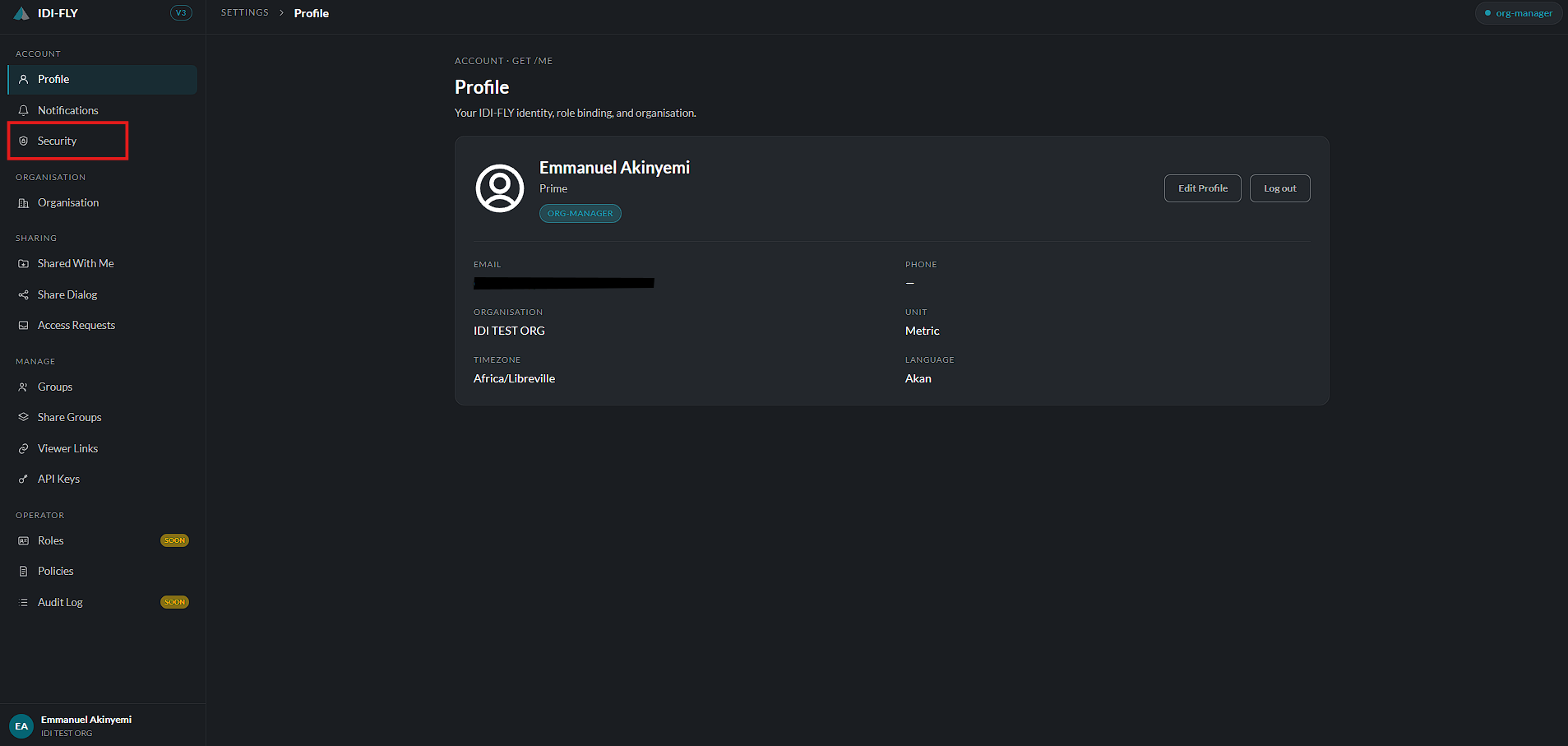
Navigate to Settings > Security.
-
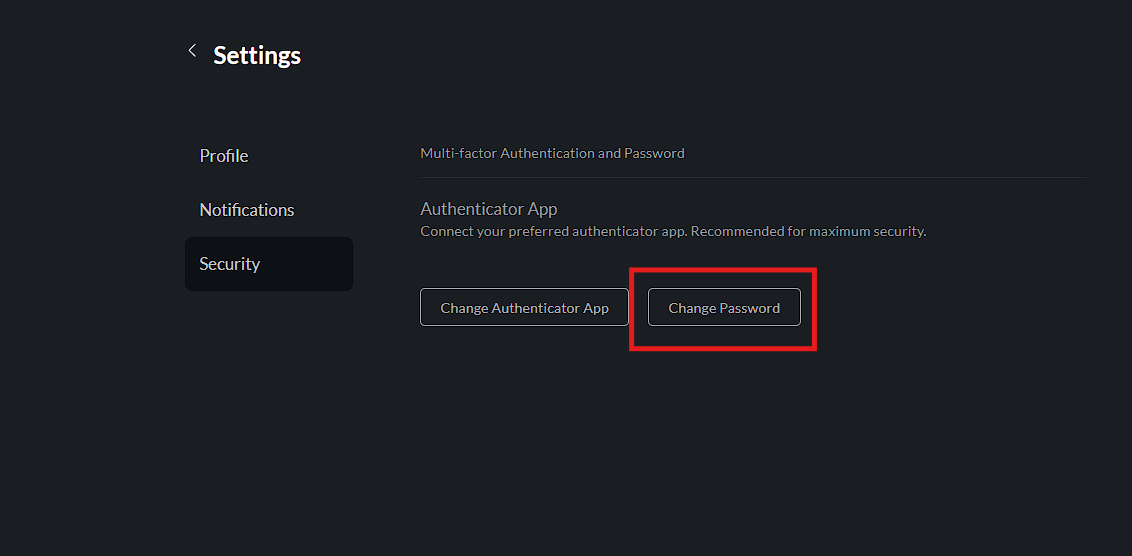
Click Change Password.
-
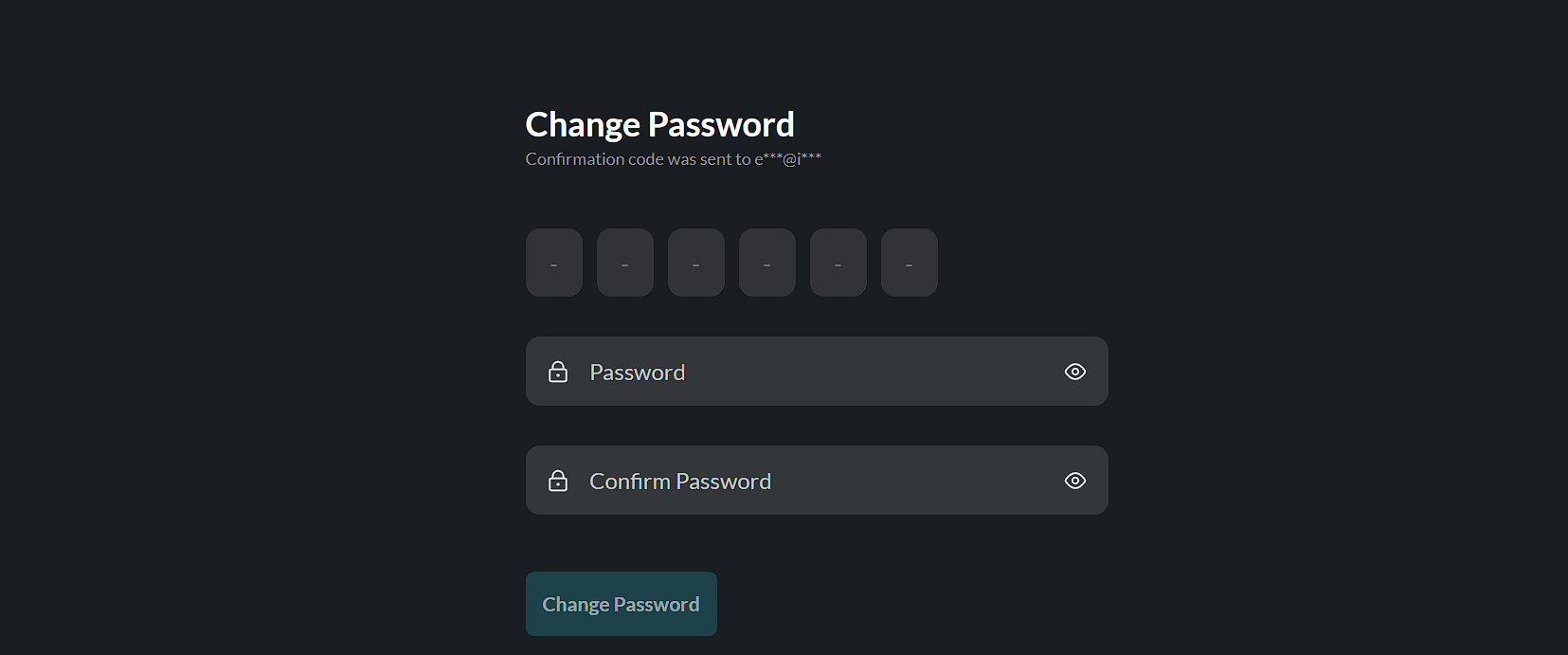
An email containing a One-Time Password (OTP) is sent to your registered email address.
-
Enter the OTP in the verification field.
-
Enter your Current Password.
-
Enter your New Password.
-
Confirm the new password if prompted.
-
Click Change Password to save the new password.
After a successful password change, use the new password the next time you sign in.
Changing Your Authenticator App
If you need to replace or reconfigure your authenticator application:
-
Navigate to Settings > Security.
-
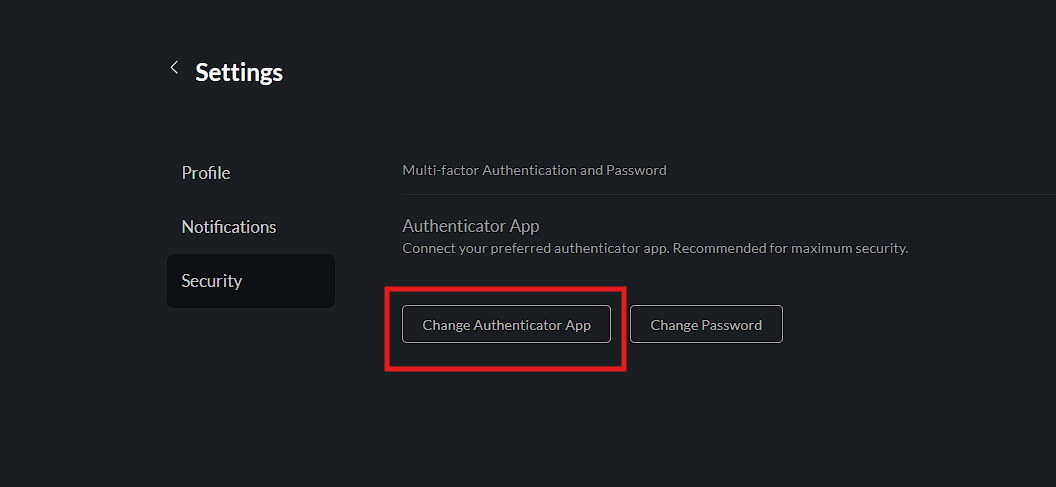
Click Change Auth App.
-
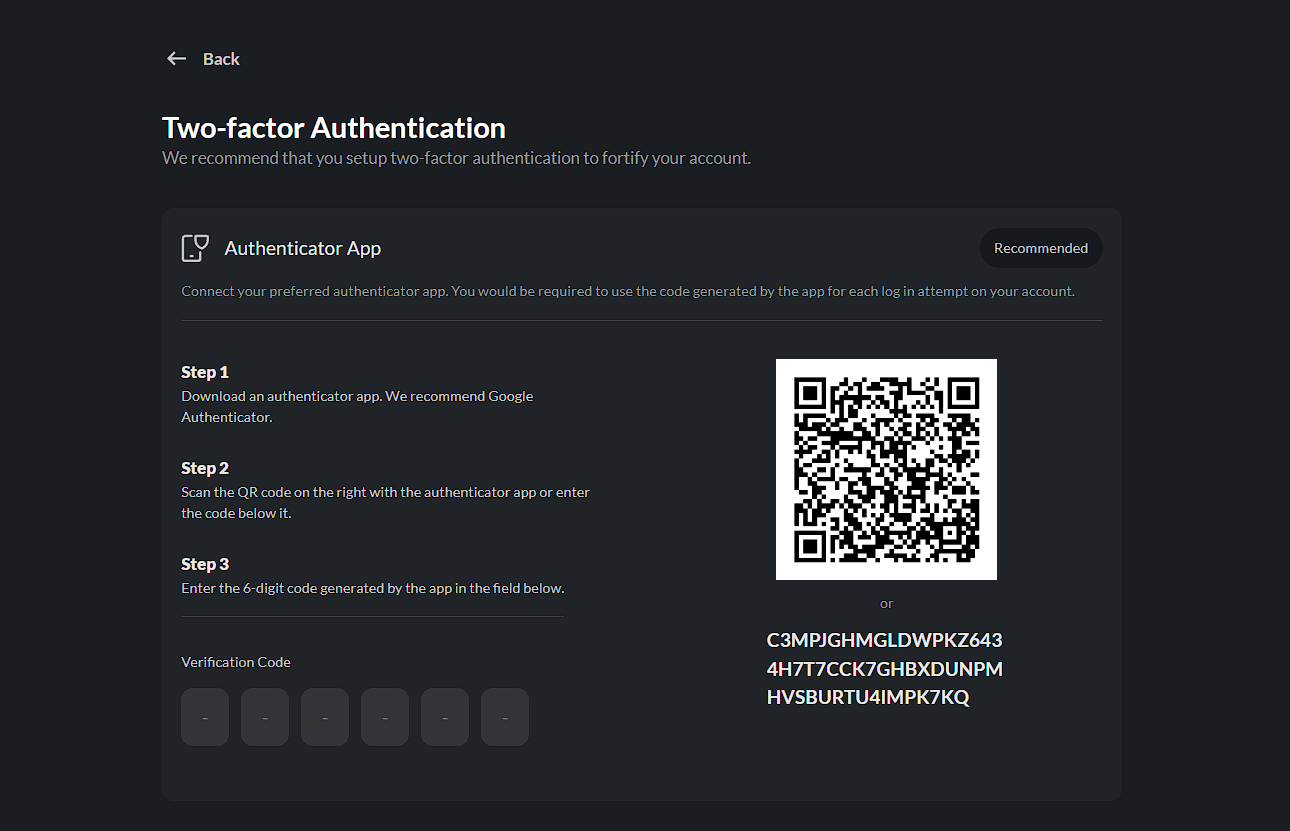
A setup page is displayed with instructions for configuring a new authenticator.
-
Either:
- Scan the displayed QR code using your authenticator application, or
- Copy the provided setup key and enter it manually into your authenticator app.
-
The authenticator generates a six-digit verification code.
-
Enter the generated code into the verification fields provided.
-
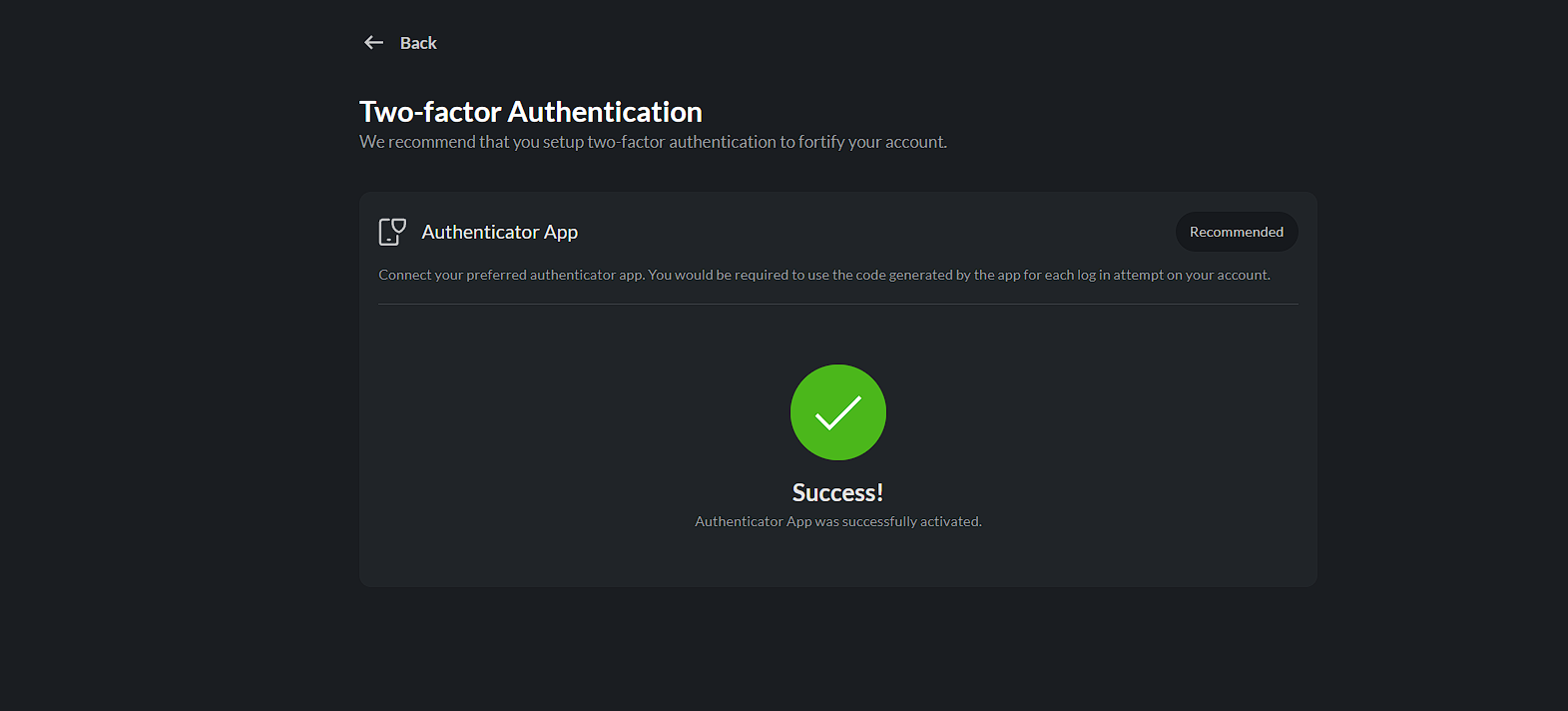
After the final digit is entered, the setup is verified automatically and a success page is displayed.
-
Click the Back button to return to the sign-in screen.
-
Sign in using your email address and password.
-
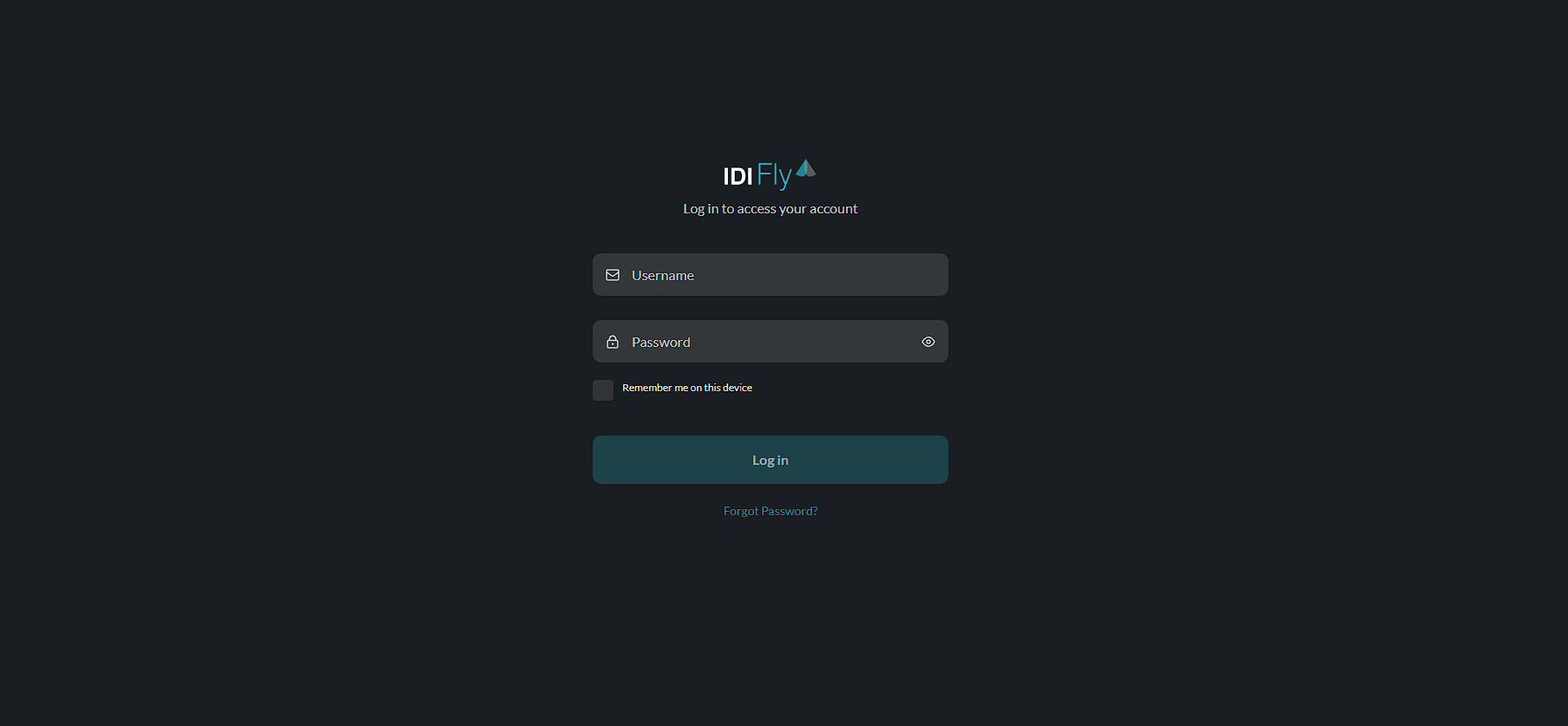
When prompted, enter the OTP generated by your newly configured authenticator application to complete the login.
Once the setup is complete, all future sign-ins will require verification using the new authenticator device.