Login
Access the IDI Fly Dashboard using your registered credentials.
Login Page
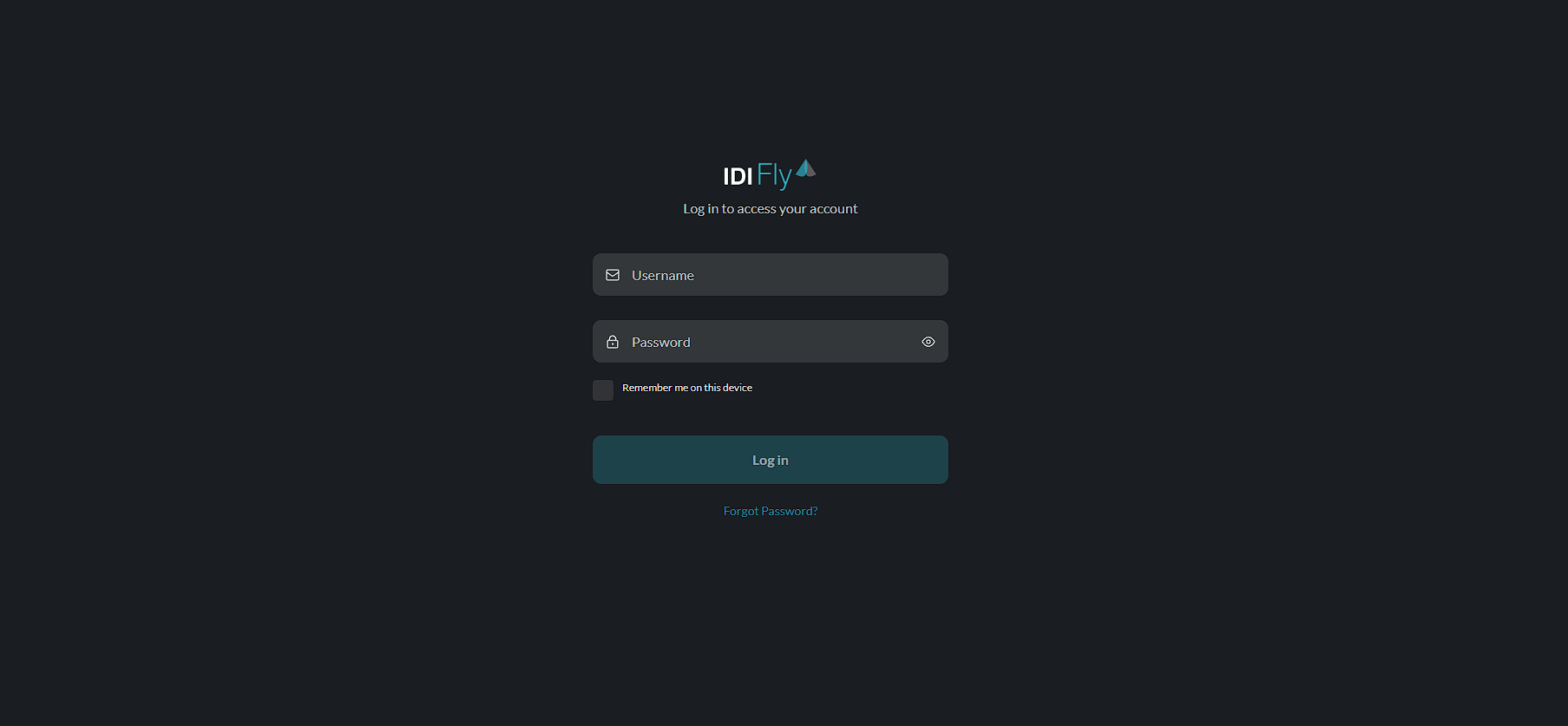
Navigate to your organization's IDI Fly Dashboard URL to access the login screen:
Login Process
Step 1: Enter Credentials
- Username - Enter your username (created during profile setup)
- Password - Enter your account password
- Remember me on this device - Check this to stay logged in (optional)
- Click Log in
Step 2: Accept Privacy Monitoring & Notifications
After entering your credentials, you may be prompted to accept privacy monitoring and enable browser notifications:
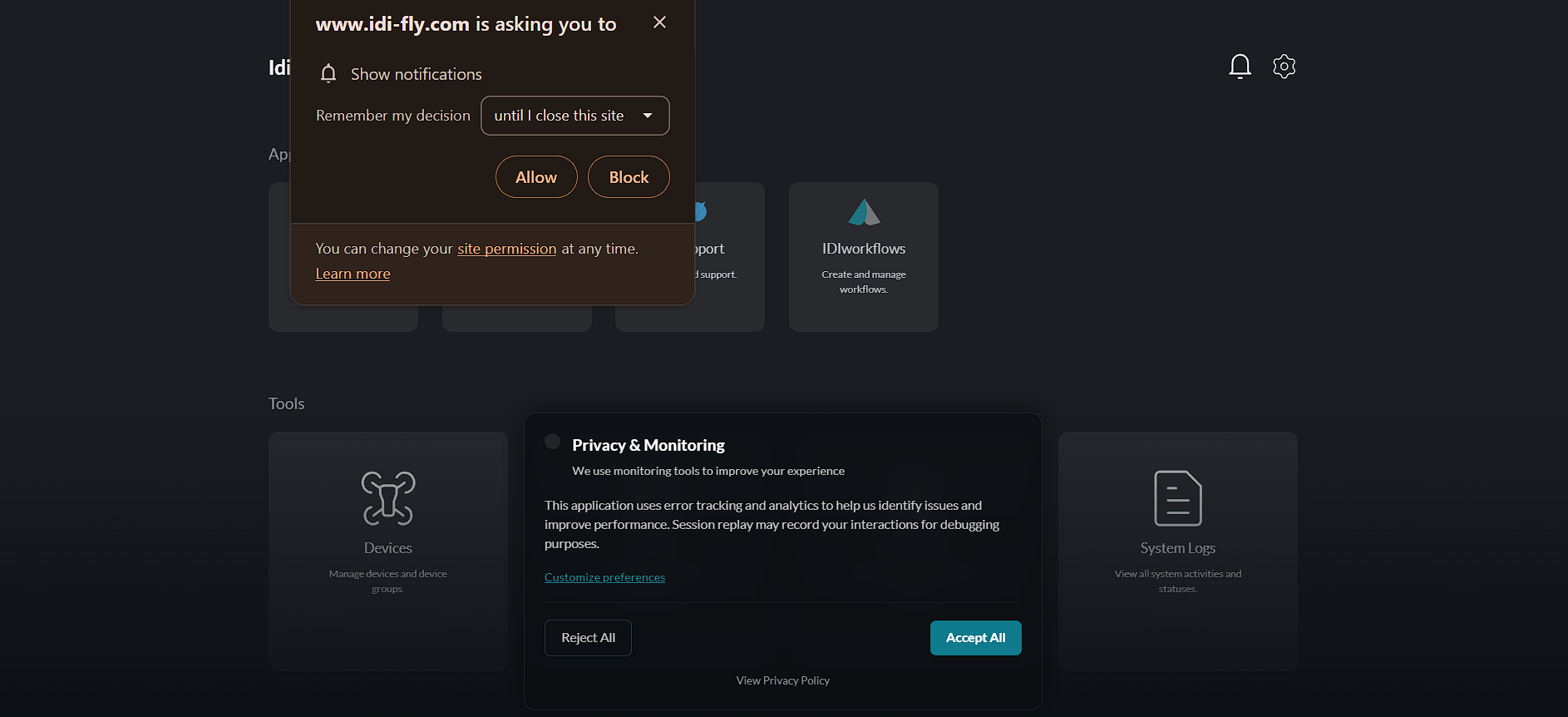
- Review the privacy monitoring information
- Click Allow to enable browser notifications
- This allows the system to send you important alerts
Step 3: Account Verification
Depending on your organization's settings, you may be prompted for additional verification:
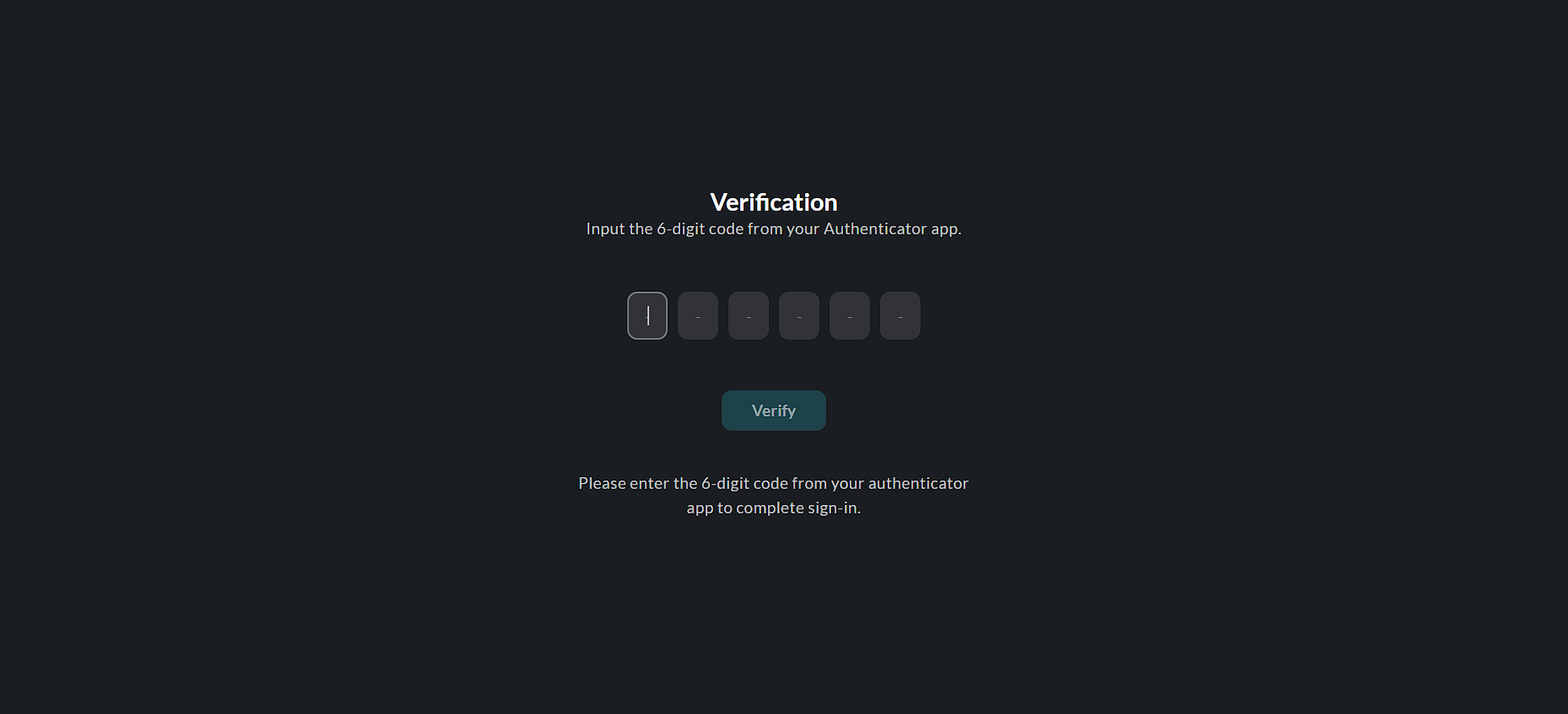
OTP
- Check your registered email or phone for the code
- Enter it and click Verify
Two-Factor Authentication
- Open your authenticator app and find your IDI Fly account
- Enter the current 6-digit code
- Click Verify
2FA codes refresh every 30 seconds. If your code isn't working, wait for a new one.
Step 4: Dashboard Access
After successful authentication, you will be redirected to the Home dashboard.
Login Errors
Invalid Credentials
If you enter incorrect username or password:
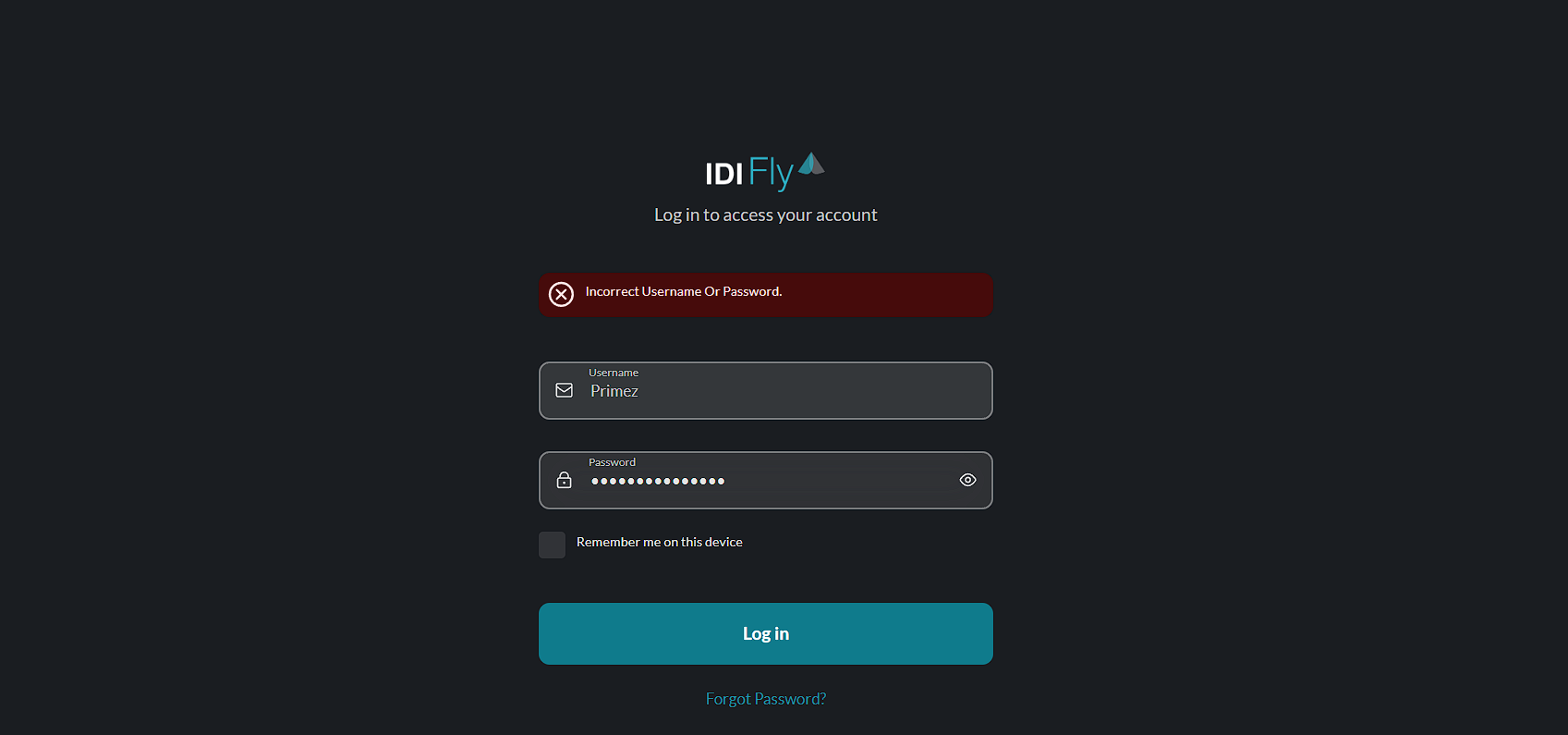
- Double-check your username (not email)
- Verify your password is correct
- Check for caps lock or typos
Account Issues
| Error | Solution |
|---|---|
| Invalid credentials | Verify username and password are correct |
| Account locked | Wait 15-30 minutes or contact administrator |
| 2FA code invalid | Ensure time sync on your authenticator device |
| Account not found | Confirm you've completed the signup process |
Forgot Password?
If you've forgotten your password, click the Forgot Password? link:
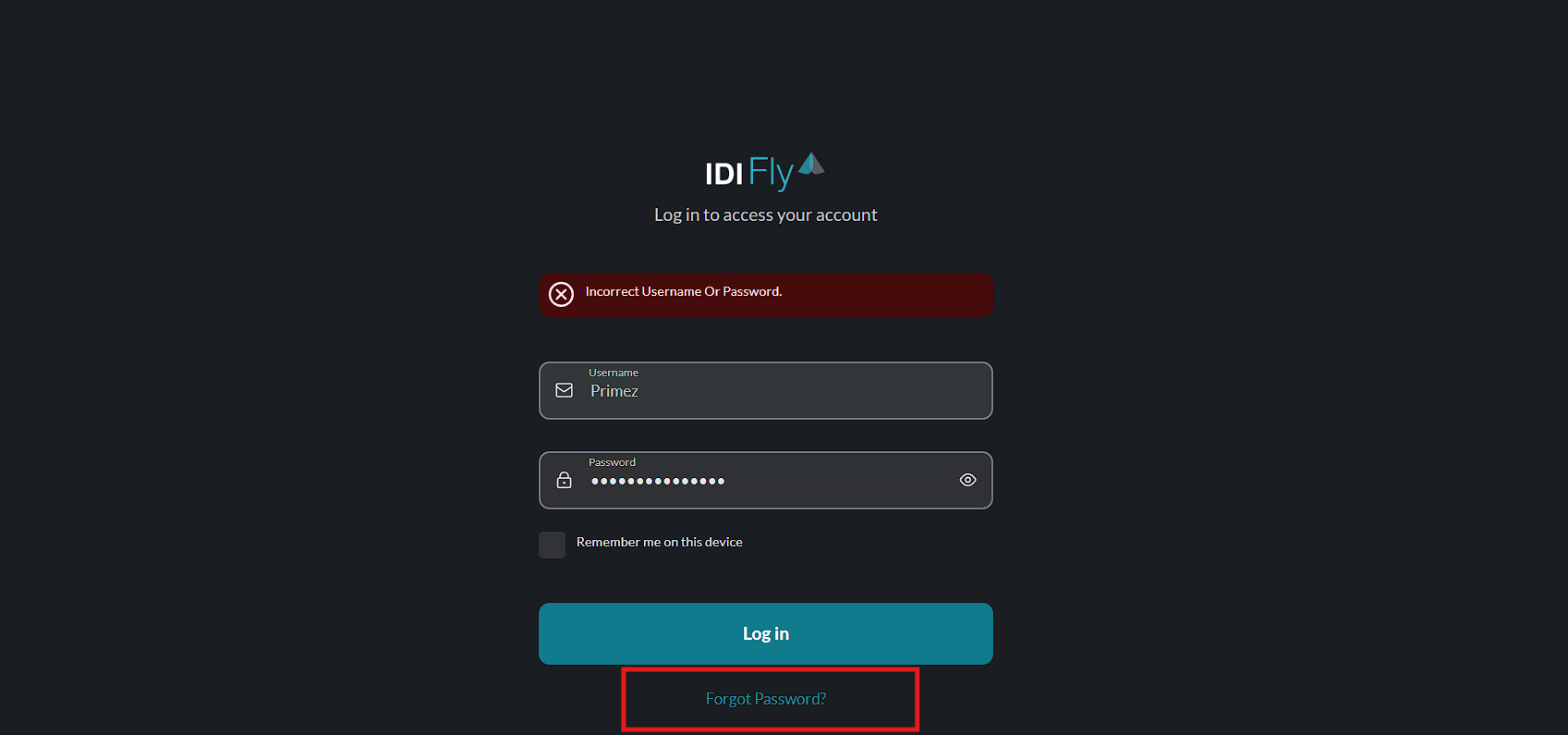
This will take you to the password reset flow. See Change Password for detailed instructions.
Session Management
- Sessions remain active while you're using the dashboard
- Inactive sessions expire after a period of inactivity
- Using "Remember me" extends your session
- Click Logout in the settings menu to end your session manually
Security Notes
For security reasons, login attempts are monitored. Multiple failed attempts may temporarily lock your account.
Best Practices:
- Never share your login credentials
- Log out when using shared computers
- Report suspicious activity to your administrator