Change Authenticator
If you need to switch to a new phone or authenticator app, you can change your 2FA settings from the Security page.
When to Change Your Authenticator
Common reasons to change your authenticator:
- Switching to a new phone
- Lost or broken device
- Changing authenticator apps
- Security concerns about your current device
How to Change Your Authenticator
Step 1: Open Settings
From the Home dashboard, you can access Settings in two ways:
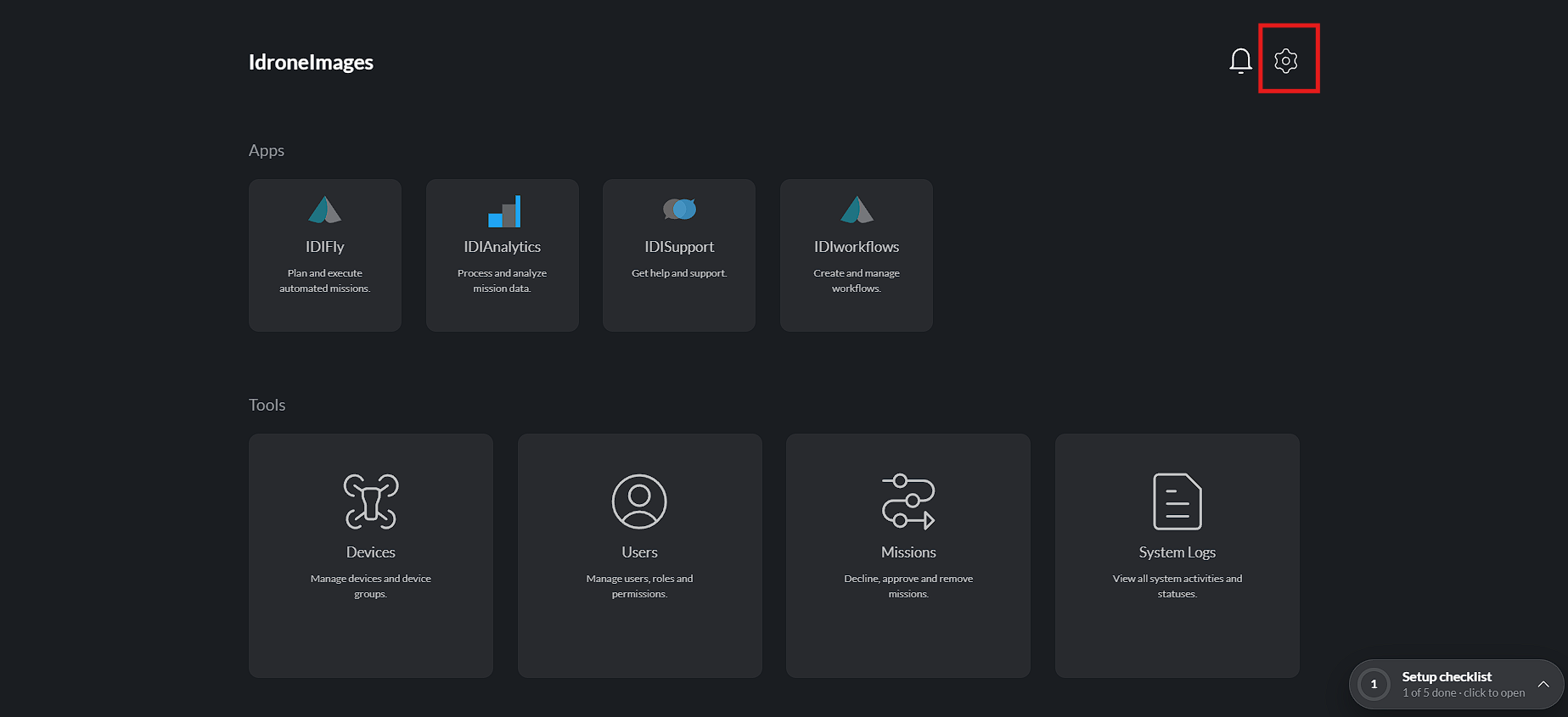
- Click the Settings icon in the top-right corner (profile area), OR
- Click the Settings card in the Tools section
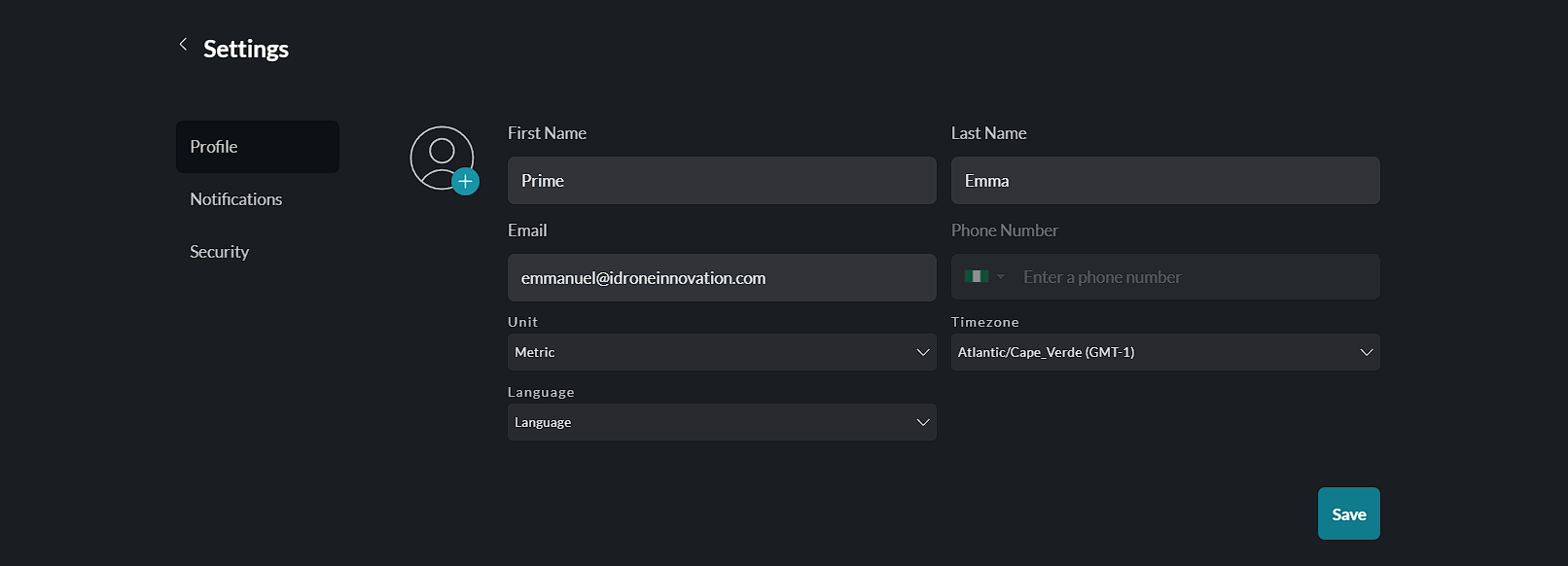
Step 2: Navigate to Security Tab
Once in Settings, click on the Security tab in the left sidebar:
Step 3: Click Change Authenticator App
Click the Change Authenticator App button.
Step 4: Verify Your Identity
You may be asked to:
- Enter your current password
- Enter a code from your current authenticator
Step 5: Set Up New Authenticator
You'll see the 2FA setup screen with a new QR code:
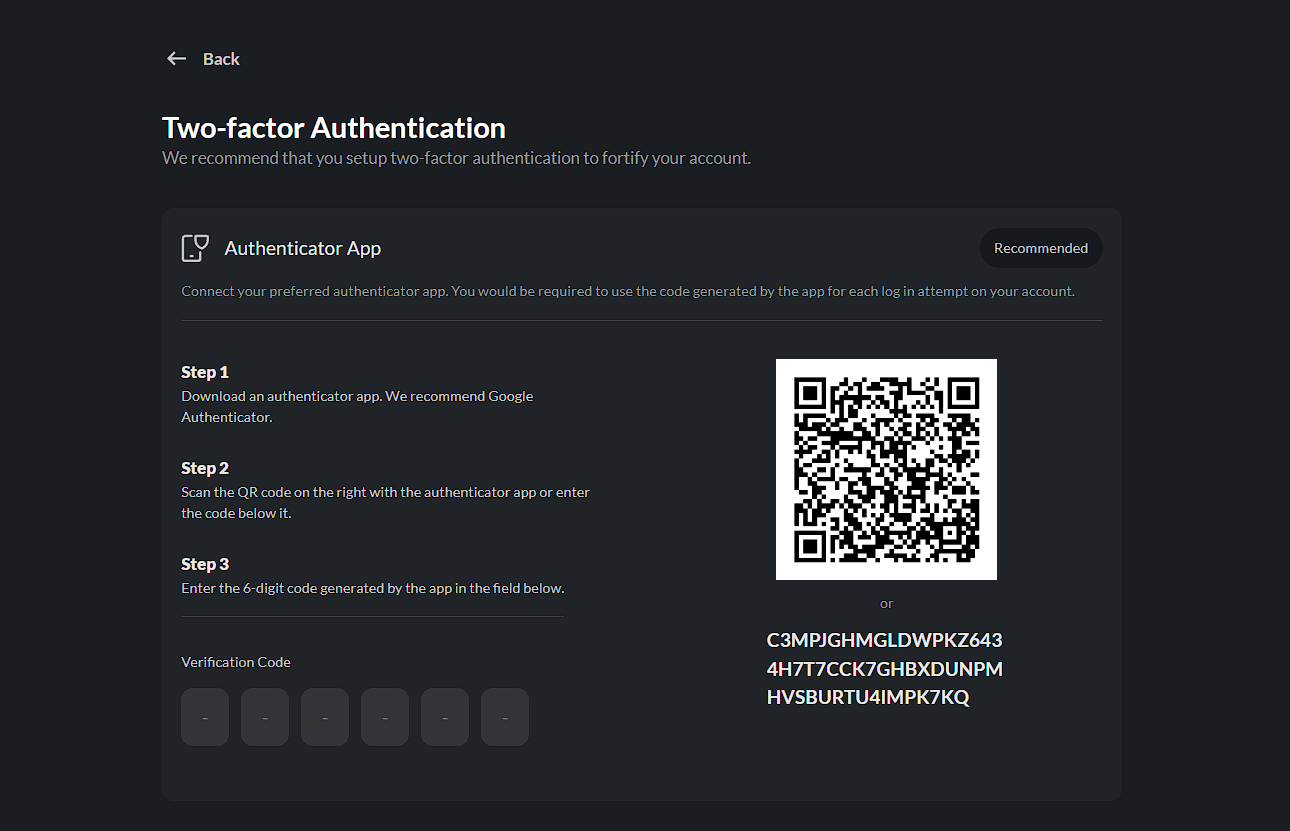
- Open your new authenticator app
- Add a new account by scanning the QR code
- Enter the 6-digit verification code
- Click Verify
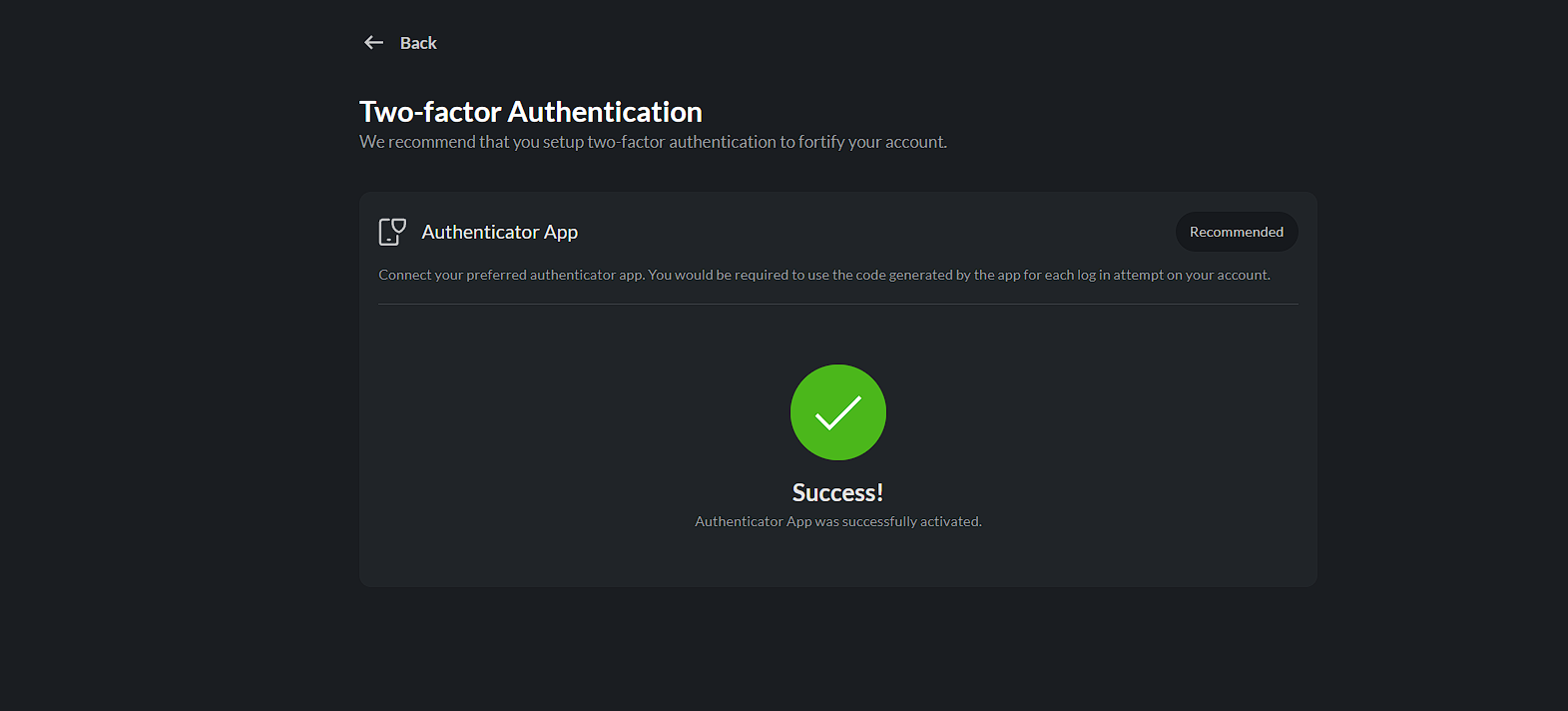
Step 6: Confirmation
After successful setup, you'll see a confirmation:
Important Notes
After changing your authenticator, your old authenticator entry will no longer work. Delete it from your old device to avoid confusion.
Before You Start
- Make sure you have access to your new authenticator app
- Have your new phone ready with the app installed
- Don't delete your old authenticator entry until the new one is verified
After Changing
- Delete the old IDI Fly entry from your previous authenticator
- Test the new authenticator by logging out and back in
- Keep your new device secure
Troubleshooting
Can't Access Old Authenticator
If you've already lost access to your old authenticator:
- Contact your organization administrator
- They can reset your 2FA settings
- You'll receive instructions to set up 2FA again
New Code Not Working
| Issue | Solution |
|---|---|
| Code rejected | Ensure your new device's time is synchronized |
| QR code won't scan | Use the manual entry code instead |
| Wrong account selected | Make sure you're using the newly added entry |
Locked Out
If you're locked out of your account:
- Contact your administrator immediately
- They can temporarily disable 2FA for your account
- You can then log in and set up a new authenticator
Consider adding your account to multiple authenticator apps or devices as a backup.