Device Settings
Configure and customize your drone settings for optimal performance.
Overview
Device Settings allow you to:
- Configure flight parameters
- Set safety limits
- Customize controls
- Manage firmware
- View device information
Accessing Device Settings
- Navigate to Devices
- Select a device from the list
- Click Settings or the gear icon
General Settings
Device Information
View and edit basic device info:
| Field | Description |
|---|---|
| Name | Custom device name |
| Serial Number | Device identifier (read-only) |
| Model | Aircraft model (read-only) |
| Firmware | Current firmware version |
| Registration | Aviation registration number |
Device Naming
Give your device a recognizable name:
- Click Edit Name
- Enter new name
- Click Save
Flight Settings
Altitude Limits
| Setting | Description |
|---|---|
| Max Altitude | Maximum height above takeoff |
| Default RTH Altitude | Return-to-home height |
| Min Altitude | Minimum safe altitude |
Speed Limits
| Setting | Description |
|---|---|
| Max Horizontal Speed | Maximum forward/lateral speed |
| Max Ascent Speed | Maximum climb rate |
| Max Descent Speed | Maximum descent rate |
Distance Limits
| Setting | Description |
|---|---|
| Max Distance | Maximum distance from home |
| Geofence Radius | Operational boundary |
Safety Settings
Return-to-Home (RTH)
Configure automatic return behavior:
| Setting | Options |
|---|---|
| RTH Altitude | Height for return flight |
| Low Battery RTH | Battery level to trigger RTH |
| Signal Loss RTH | Action on signal loss |
| RTH Speed | Speed during return |
Low Battery Actions
| Battery Level | Action |
|---|---|
| Warning | Alert notification |
| Critical | Automatic RTH |
| Emergency | Forced landing |
Signal Loss Behavior
| Duration | Action |
|---|---|
| 3 seconds | Hover in place |
| 10 seconds | Begin RTH |
| 30 seconds | Complete RTH or land |
Geofencing
Enable/Disable Geofencing
Toggle geofence restrictions:
- Navigate to Safety > Geofencing
- Toggle Enable Geofencing
- Configure boundary settings
Custom Geofence
Create operational boundaries:
- Click Create Geofence
- Draw boundary on map
- Set altitude limits
- Save configuration
Geofence Actions
| Setting | Options |
|---|---|
| At Boundary | Warn, Hover, RTH |
| Speed Near Boundary | Normal, Reduced |
| Altitude Limit | Max height in zone |
Camera Settings
Photo Settings
| Setting | Options |
|---|---|
| Resolution | Full, High, Medium |
| Format | JPEG, RAW, JPEG+RAW |
| Aspect Ratio | 4:3, 16:9, 3:2 |
Video Settings
| Setting | Options |
|---|---|
| Resolution | 4K, 2.7K, 1080p, 720p |
| Frame Rate | 24, 30, 60, 120 fps |
| Format | MP4, MOV |
| Bitrate | Standard, High |
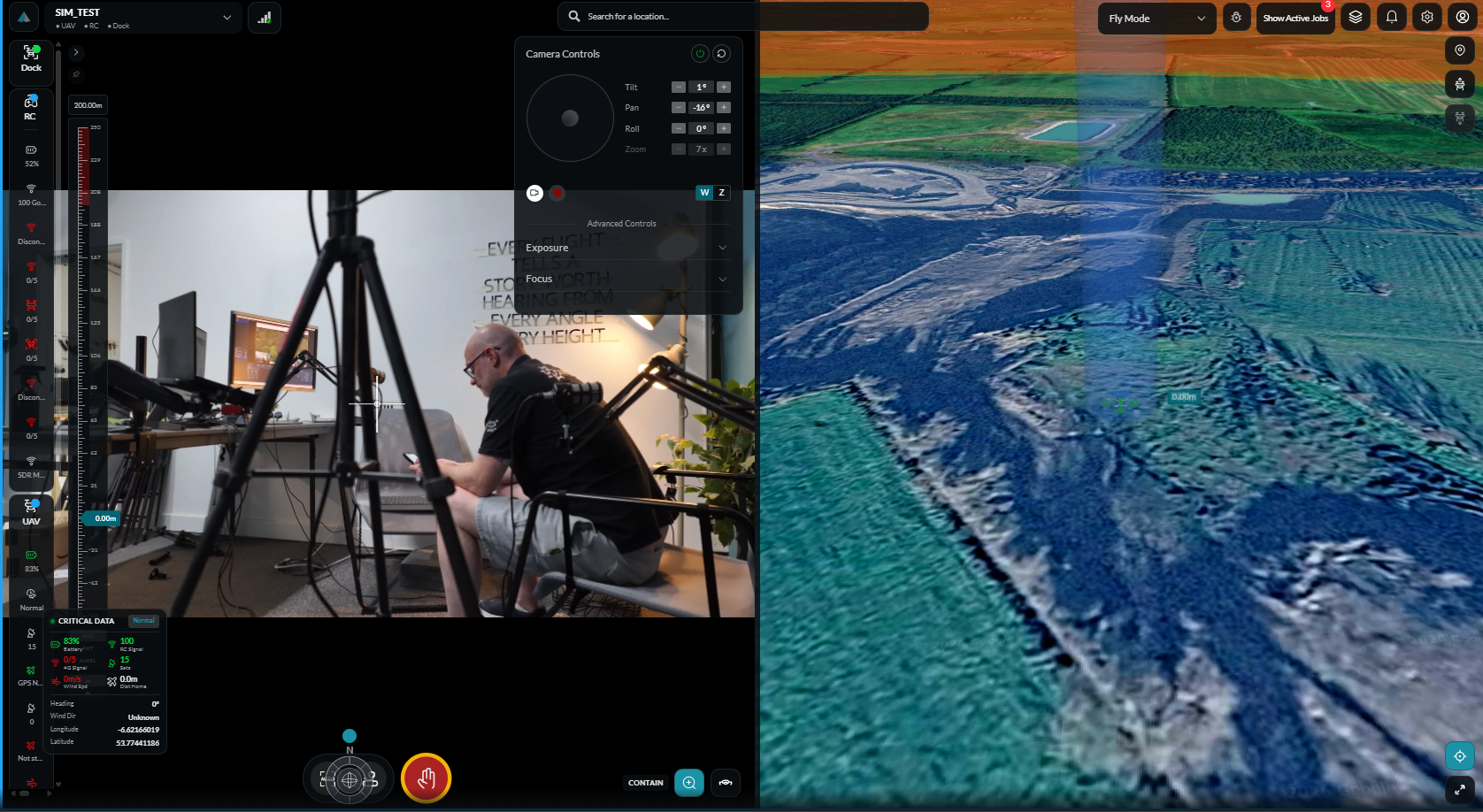
Gimbal Settings
| Setting | Options |
|---|---|
| Tilt Range | Configurable limits |
| Pan Range | If supported |
| Control Speed | Slow, Medium, Fast |
| Smoothing | Gimbal response smoothness |
Control Settings
Stick Mode
| Mode | Description |
|---|---|
| Mode 1 | Japanese style |
| Mode 2 | American style (default) |
| Mode 3 | Chinese style |
| Custom | User-defined mapping |
Sensitivity
Adjust control response:
| Parameter | Range |
|---|---|
| Expo | Control curve shaping |
| Sensitivity | Overall responsiveness |
| Yaw Rate | Rotation speed |
Button Mapping
Customize controller buttons:
- Navigate to Controls > Button Mapping
- Select button to configure
- Choose action
- Save settings
Network Settings
Connection Priority
| Setting | Options |
|---|---|
| Primary | WiFi, Cellular, Auto |
| Failover | Secondary connection |
| Data Saving | Reduce bandwidth usage |
Streaming Settings
| Setting | Options |
|---|---|
| Quality | Auto, High, Medium, Low |
| Latency Mode | Normal, Low Latency |
| Bitrate | Adaptive, Fixed |
Firmware Management
Checking for Updates
- Navigate to Settings > Firmware
- Click Check for Updates
- View available updates
Installing Updates
- Click Download on available update
- Wait for download to complete
- Click Install
- Do not power off during installation
warning
Ensure adequate battery level (>50%) before installing firmware updates.
Firmware History
View installed versions:
- Current version
- Previous versions
- Update changelog
Maintenance Settings
Flight Logs
| Setting | Options |
|---|---|
| Auto Upload | Automatic log sync |
| Log Detail | Standard, Detailed |
| Retention | How long to keep logs |
Calibration
Regular calibration ensures accuracy:
| Component | Frequency |
|---|---|
| Compass | Before each flight in new location |
| IMU | When prompted or after impact |
| Gimbal | If drift observed |
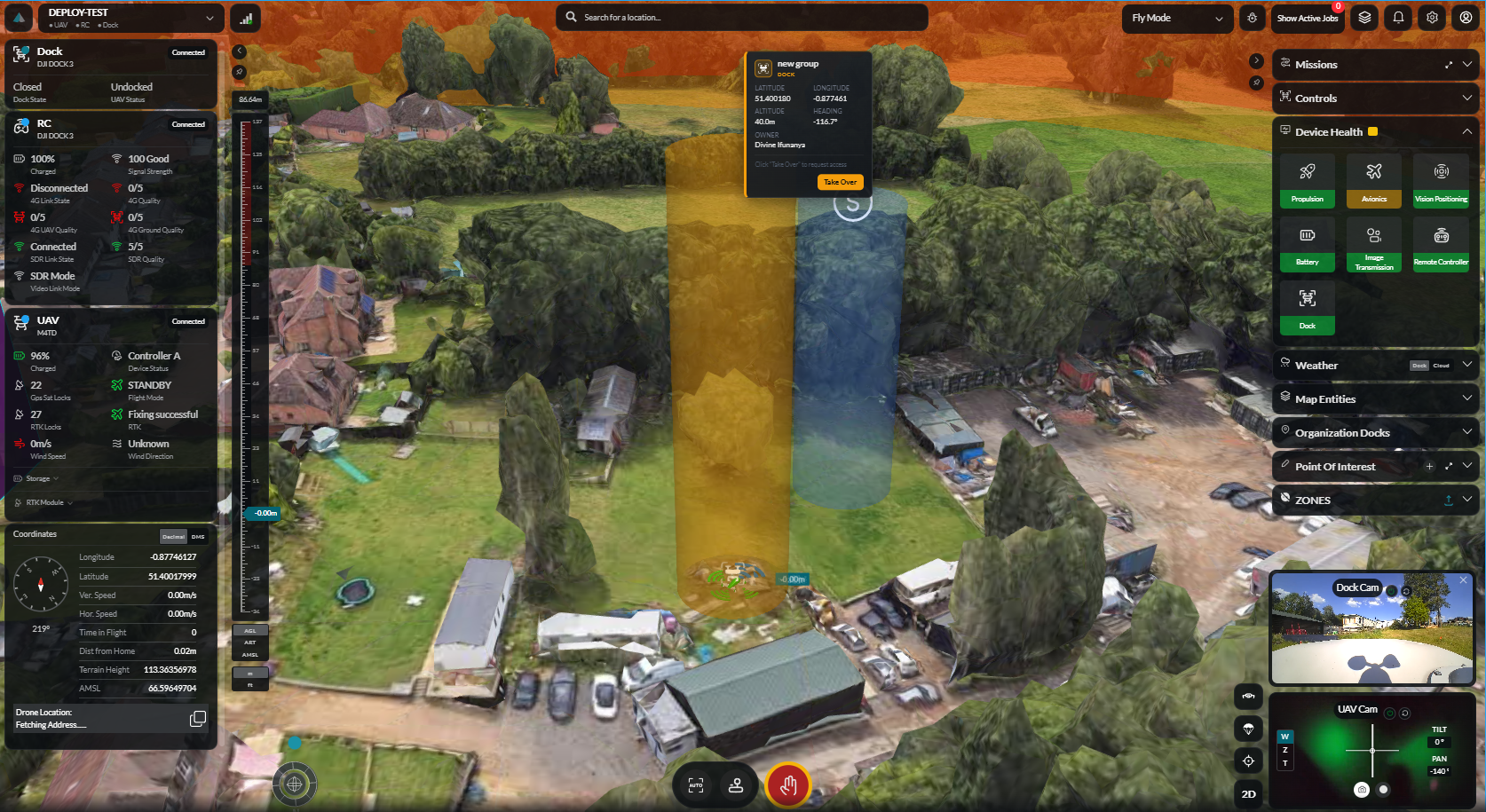
Component Status
View component health:
- Motors
- ESCs
- Sensors
- Battery
Default Settings
Reset to Defaults
Reset all settings to factory defaults:
- Navigate to Settings > Reset
- Click Reset to Defaults
- Confirm action
warning
This will erase all custom settings. This action cannot be undone.
Export Settings
Save your configuration:
- Click Export Settings
- Save configuration file
- Use to restore or apply to other devices
Import Settings
Apply saved configuration:
- Click Import Settings
- Select configuration file
- Review and confirm
Troubleshooting
Settings Not Saving
- Check internet connection
- Verify device is online
- Try refreshing the page
Settings Not Applied
- Reconnect to device
- Restart device
- Update firmware
Calibration Failed
- Ensure flat, stable surface
- Move away from metal objects
- Follow on-screen instructions carefully