Media Management
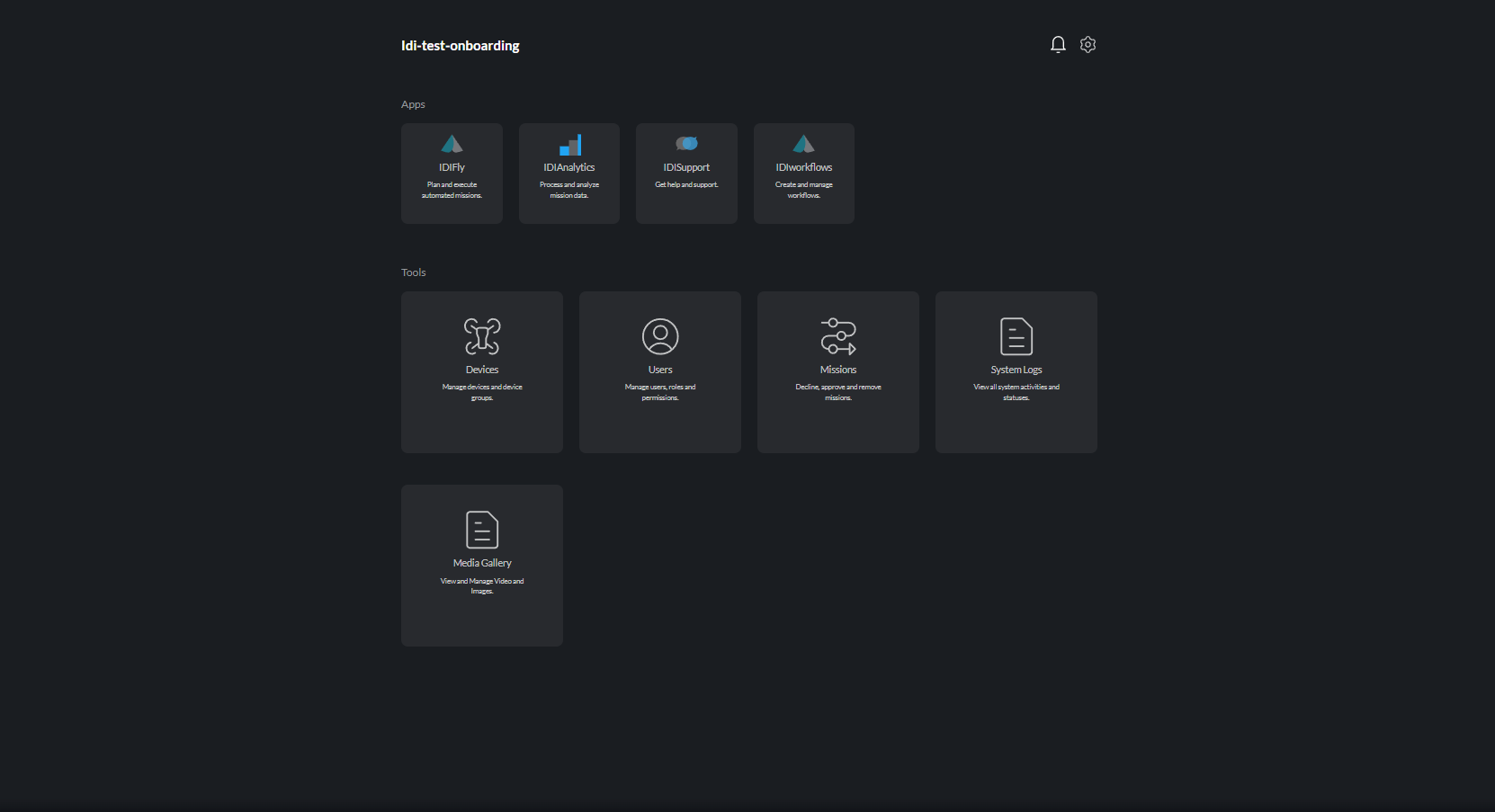
The Media Management interface allows you to organize, view, and manage all captured photos and videos from your drone operations.
Overview
Media Management provides:
- File Browser - Navigate and organize media files
- Preview - View photos and videos in the browser
- Download - Export media for external use
- Organization - Folders, tags, and metadata
- Sharing - Share media with team members
Interface Layout
Navigation Panel
- Folder hierarchy
- Quick filters
- Search functionality
Content Area
- Grid or list view of media files
- Thumbnails and previews
- File details
Preview Panel
- Full-size media preview
- Metadata display
- Action buttons
Browsing Media
View Modes
| Mode | Description |
|---|---|
| Grid | Thumbnail gallery view |
| List | Detailed list with metadata |
| Timeline | Organized by capture date |
Navigation
Browse media by:
- Date - Calendar-based navigation
- Device - Filter by aircraft
- Flight - Group by flight session
- Folder - Custom organization
- Tags - User-defined labels
Sorting
Sort media by:
- Date captured (newest/oldest)
- File name
- File size
- Duration (videos)
Filtering Media
Quick Filters
- All Media - Show everything
- Photos - Images only
- Videos - Video files only
- Favorites - Starred items
- Recent - Recently captured
Advanced Filters
Filter by:
| Filter | Options |
|---|---|
| Date Range | Custom start/end dates |
| Device | Specific aircraft |
| Pilot | Captured by specific user |
| File Type | JPG, PNG, MP4, etc. |
| Resolution | Image/video dimensions |
| Size | File size range |
Viewing Media
Photo Preview
Click any photo to open the preview:
- Zoom - Scroll or pinch to zoom
- Pan - Click and drag to move
- Fullscreen - Expand to full screen
- Navigate - Arrow keys for next/previous
Video Playback
Click any video to play:
- Play/Pause - Space bar or click
- Seek - Click timeline or use arrows
- Volume - Adjust audio level
- Speed - Playback speed control
- Fullscreen - Expand video player
Metadata View
View captured metadata:
| Data | Description |
|---|---|
| Date/Time | When captured |
| Location | GPS coordinates |
| Altitude | Height when captured |
| Device | Aircraft used |
| Camera Settings | ISO, shutter, aperture |
| File Info | Size, format, resolution |
Downloading Media
Single File Download
- Select a file
- Click Download button
- File saves to your device
Bulk Download
- Select multiple files (Ctrl/Cmd + click)
- Or use Select All for entire folder
- Click Download Selected
- Files download as ZIP archive
Download Options
- Original - Full resolution file
- Optimized - Compressed version
- Thumbnail - Small preview image
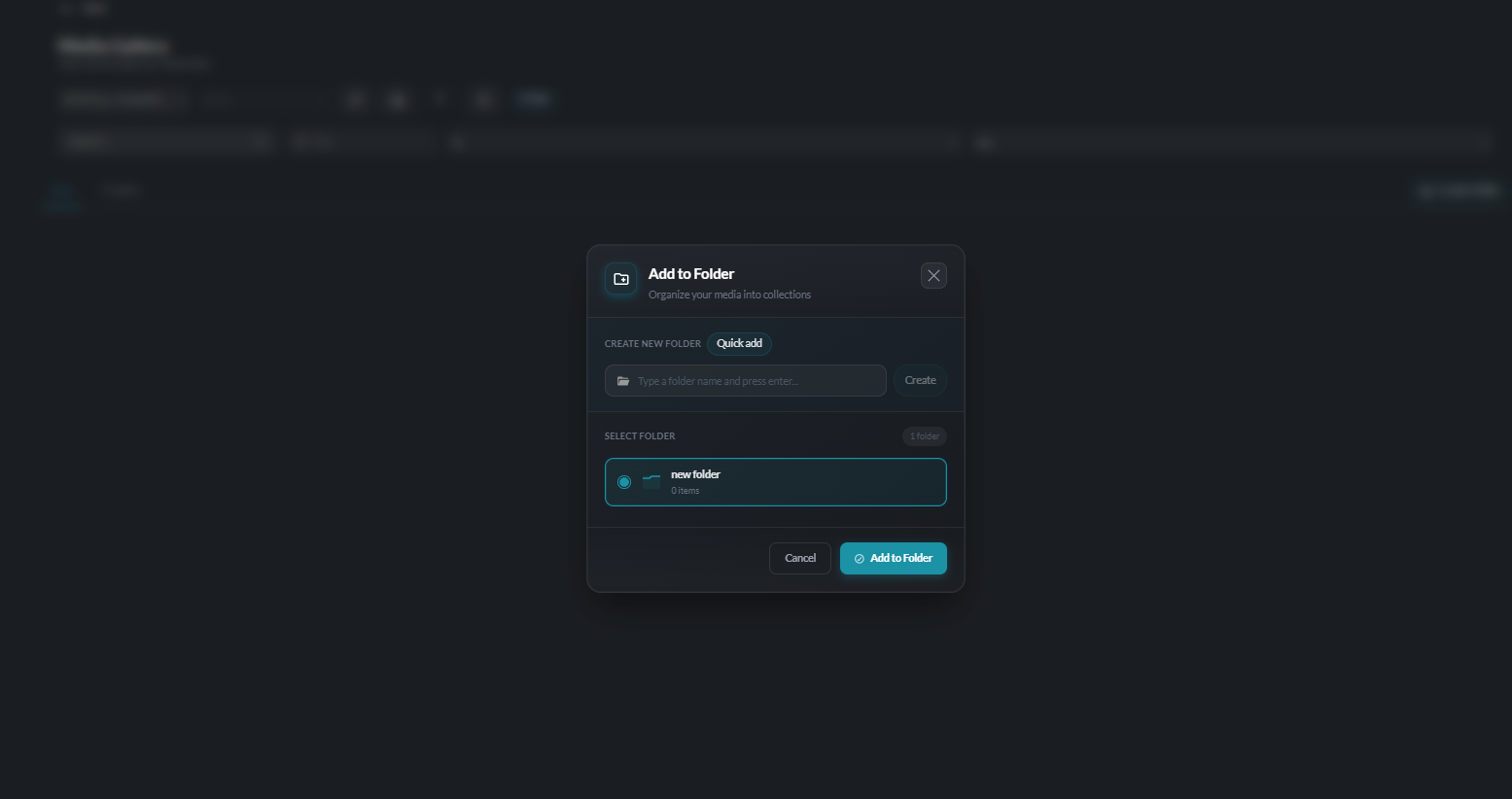
Organizing Media
Creating Folders
- Click New Folder in navigation
- Enter folder name
- Click Create
Moving Files
- Select files to move
- Drag to destination folder
- Or use Move To menu option
Tagging
Add tags for easy finding:
- Select file(s)
- Click Add Tags
- Enter or select tags
- Click Apply
Favorites
Mark important files:
- Select file
- Click the star icon
- Access via Favorites filter
File Operations
Rename
- Select file
- Click Rename or press F2
- Enter new name
- Press Enter to confirm
Delete
- Select file(s)
- Click Delete
- Confirm deletion
Deleted files are moved to trash and permanently removed after 30 days.
Restore from Trash
- Navigate to Trash
- Select files to restore
- Click Restore
Sharing Media
Share with Team
- Select file(s)
- Click Share
- Select team members
- Set permissions (view/download)
- Click Share
External Sharing
- Select file(s)
- Click Create Link
- Configure link settings:
- Expiration date
- Password protection
- Access permissions
- Copy and share the link
Share Settings
| Setting | Options |
|---|---|
| Access Level | View only, Download allowed |
| Expiration | 1 day, 7 days, 30 days, Never |
| Password | Optional password protection |
| Download Limit | Max number of downloads |
Storage Management
Storage Overview
View storage usage:
- Total storage capacity
- Used space
- Available space
- Usage by category
Managing Space
Free up storage:
- Delete unwanted files
- Empty trash
- Download and remove old media
- Archive to external storage
Storage Alerts
Receive notifications when:
- Storage reaches 80% capacity
- Storage reaches 95% capacity
- Storage is full
Search
Basic Search
- Enter keywords in search box
- Press Enter or click Search
- Results display matching files
Search Options
Search by:
- File name
- Tags
- Date
- Location
- Metadata
Search Tips
- Use quotes for exact phrases
- Combine terms with AND/OR
- Filter results after searching
Keyboard Shortcuts
| Shortcut | Action |
|---|---|
Enter | Open selected item |
Delete | Delete selected |
Ctrl/Cmd + A | Select all |
Ctrl/Cmd + D | Download selected |
Arrow keys | Navigate items |
Space | Preview/play |
F | Toggle fullscreen |
Esc | Close preview |
Download Progress (Download Pill)
When a bulk download or export is initiated, the dashboard shows a persistent download progress indicator (the "download pill") in the interface. This section will document how to monitor active downloads, cancel in-progress transfers, and interpret progress states.
Asset Upload
Media files and reference assets can be uploaded to supported cloud destinations (S3, Azure Blob, or Sketch) directly from the Media panel. This section will cover the upload workflow, supported formats, progress tracking, and error handling.
Troubleshooting
Media Not Loading
- Check internet connection
- Refresh the page
- Clear browser cache
Download Failures
- Check available disk space
- Try smaller selection
- Disable ad blockers
Upload Issues
- Verify file format is supported
- Check file size limits
- Ensure stable connection