Waypoint Missions
A Waypoint Mission allows users to create a custom flight path by placing waypoints on the map. The aircraft follows the defined route in the order the waypoints are created.
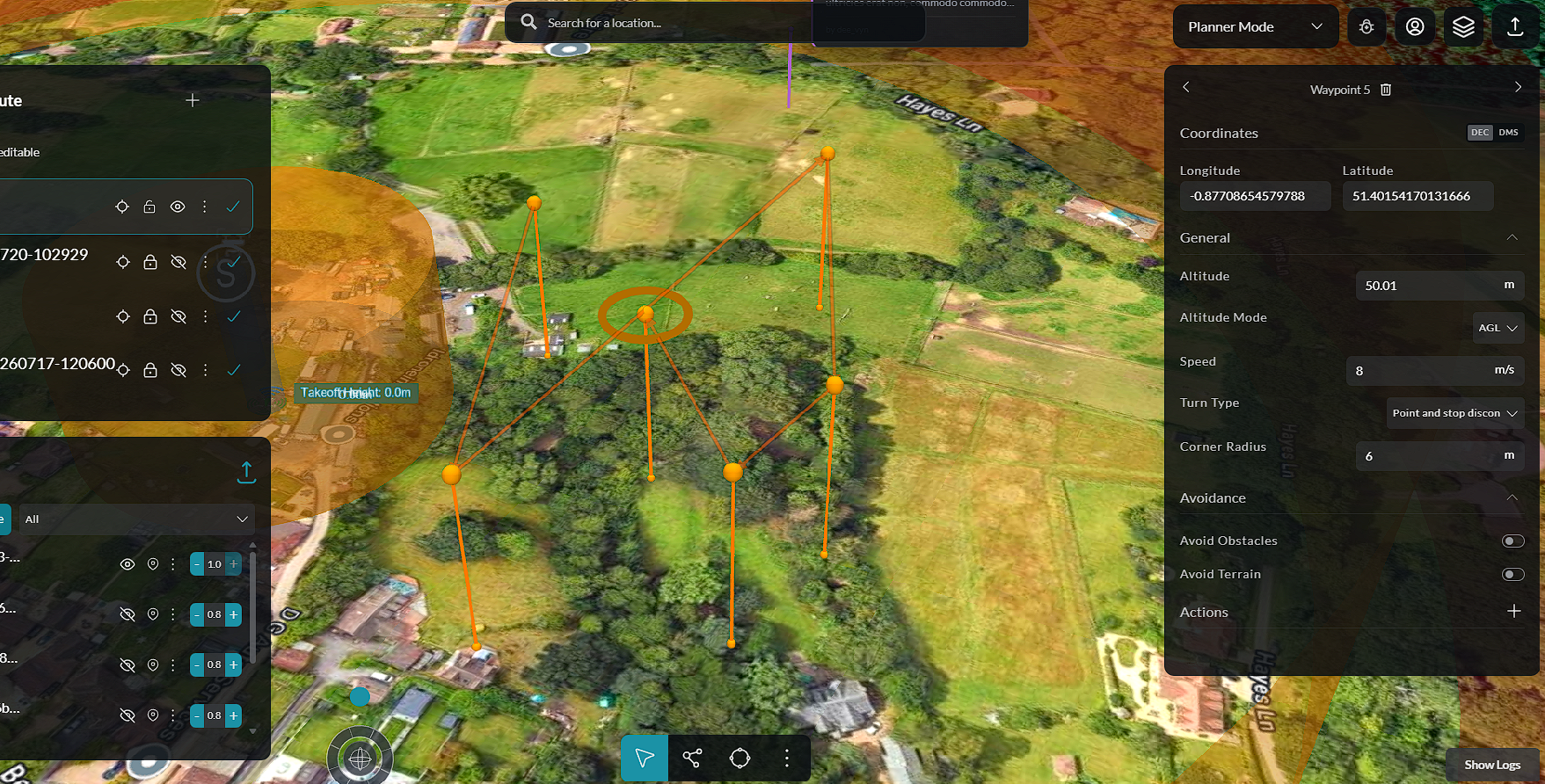
Creating a Waypoint Mission
To create a waypoint mission:
-
Click Add Route.
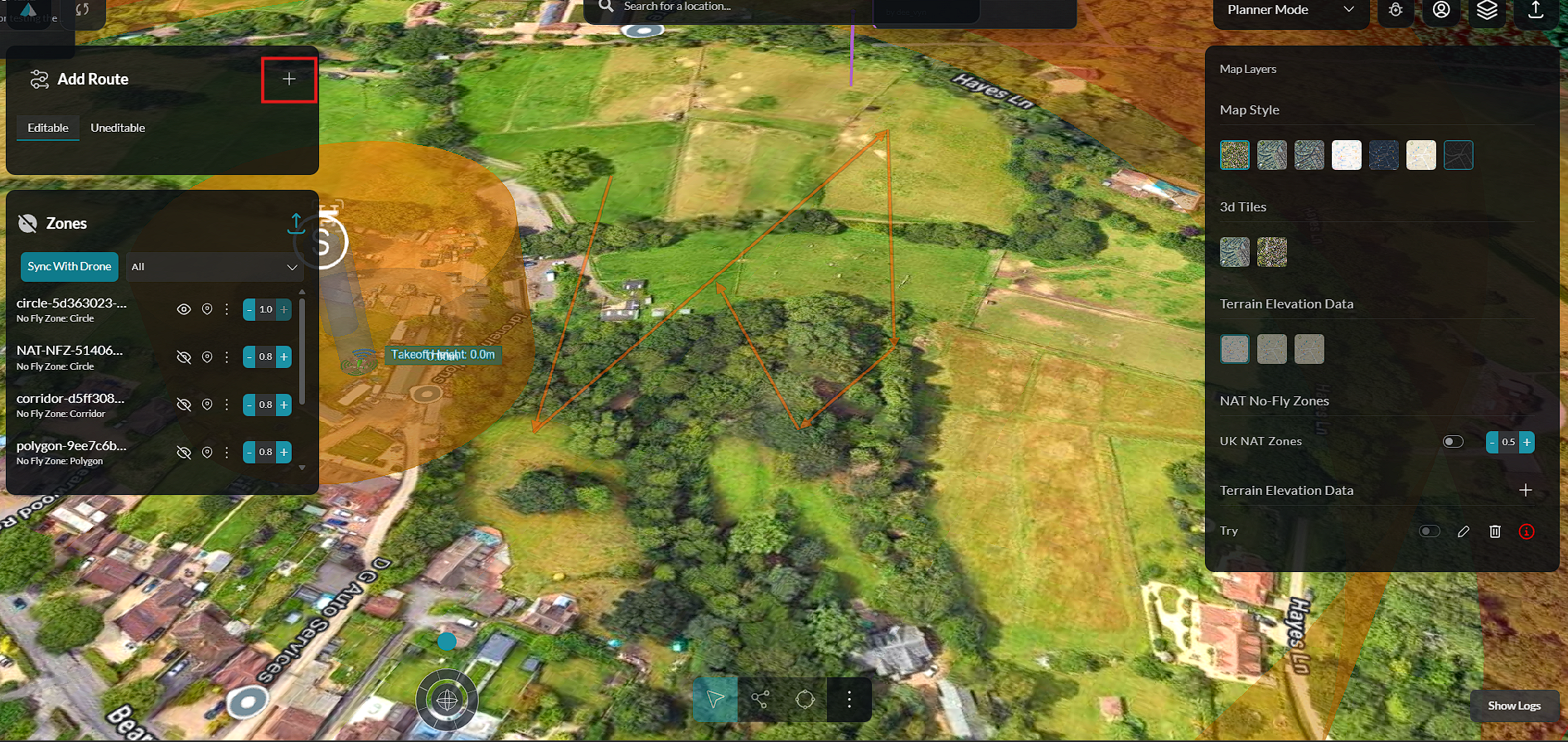
-
Select Waypoint as the mission type.
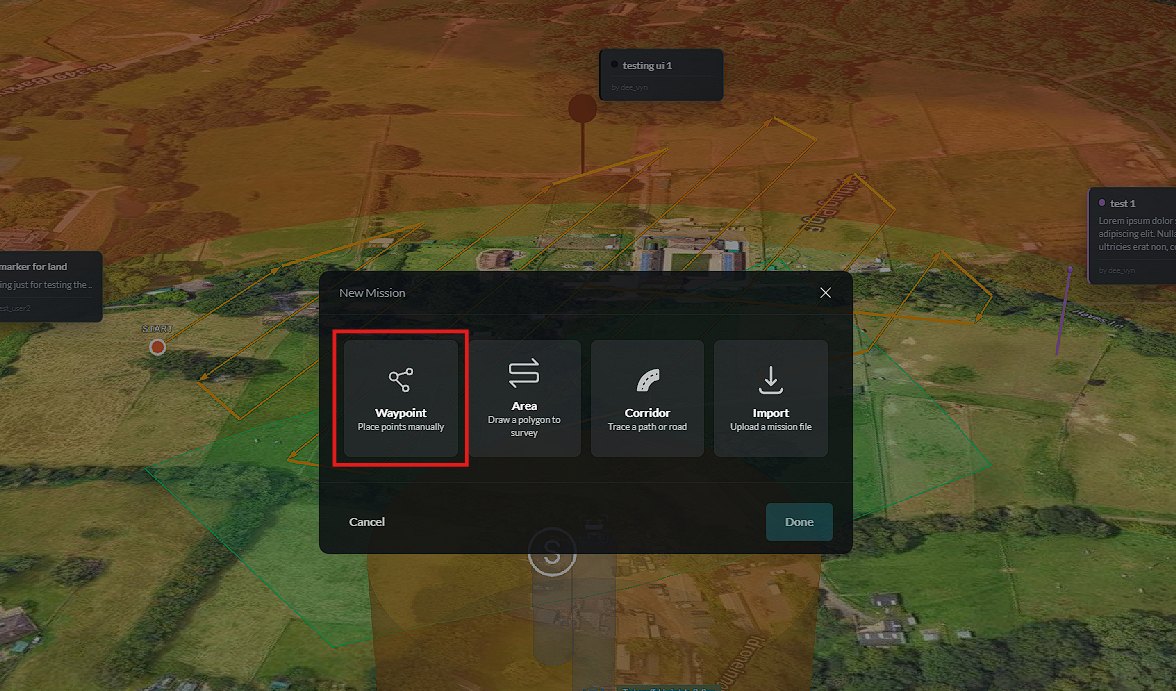
-
Enter a name for the mission.
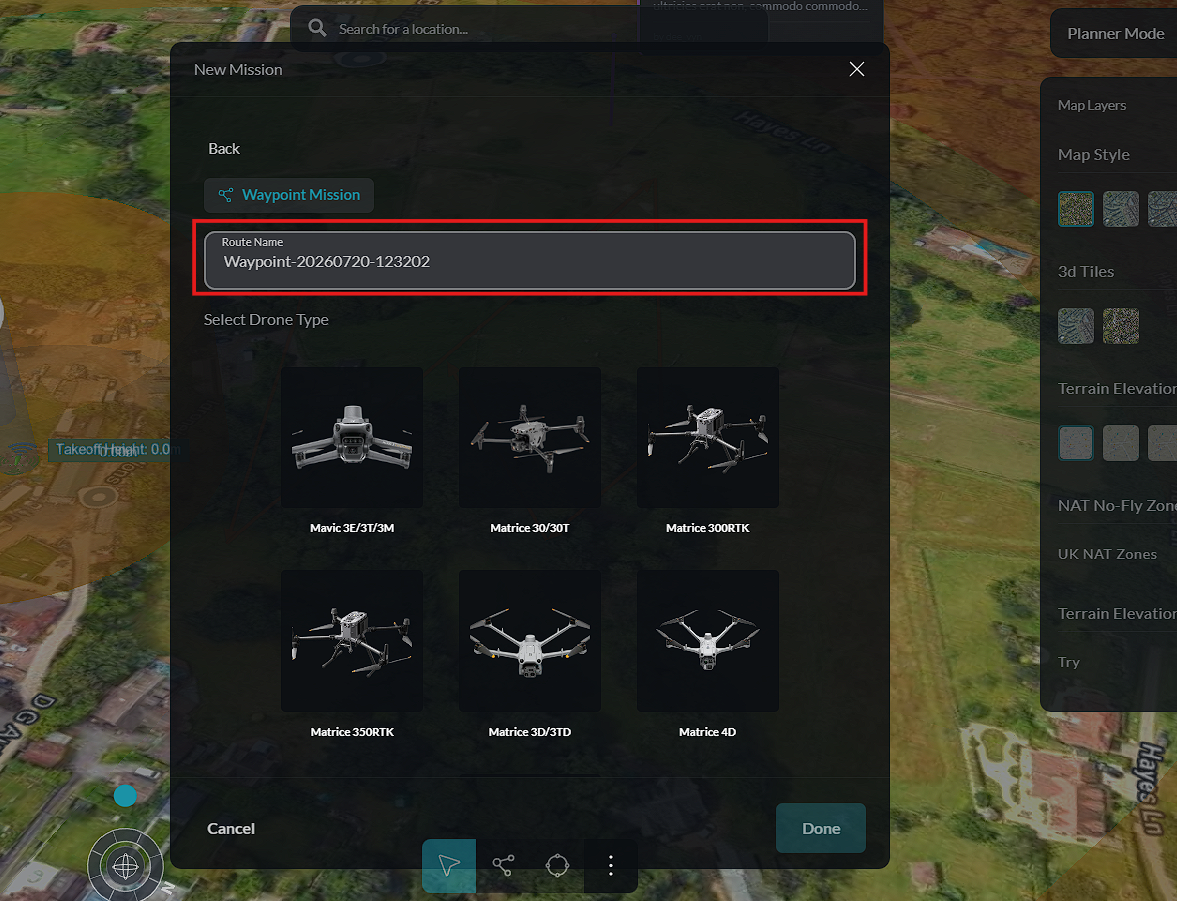
-
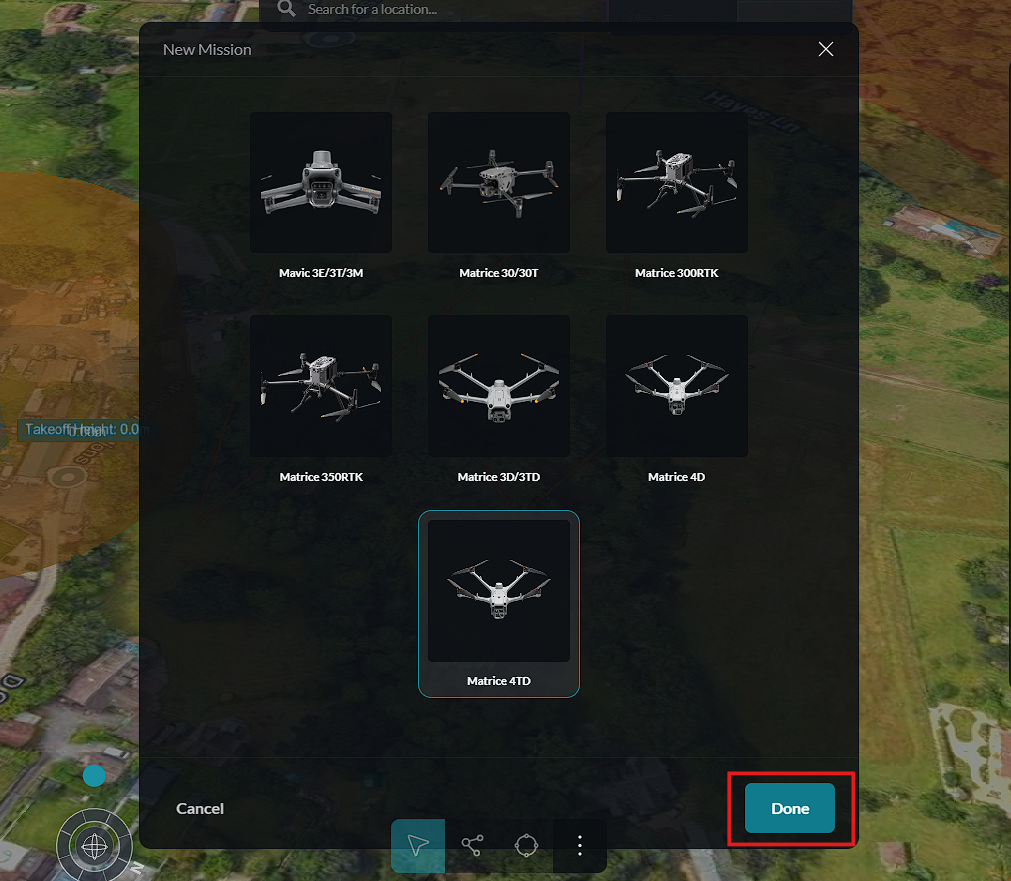
Select the device the mission will be assigned to.
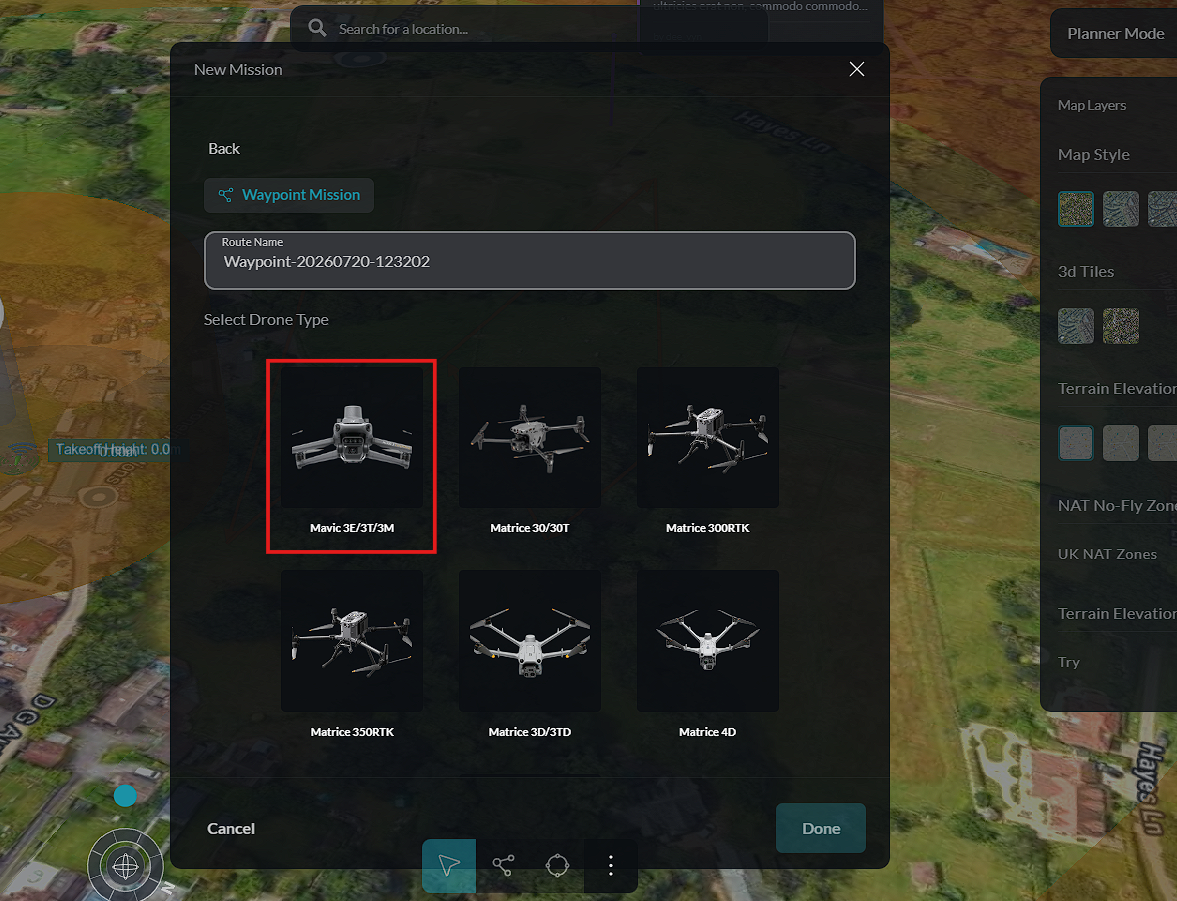
-
Click Done to save the mission details.
-
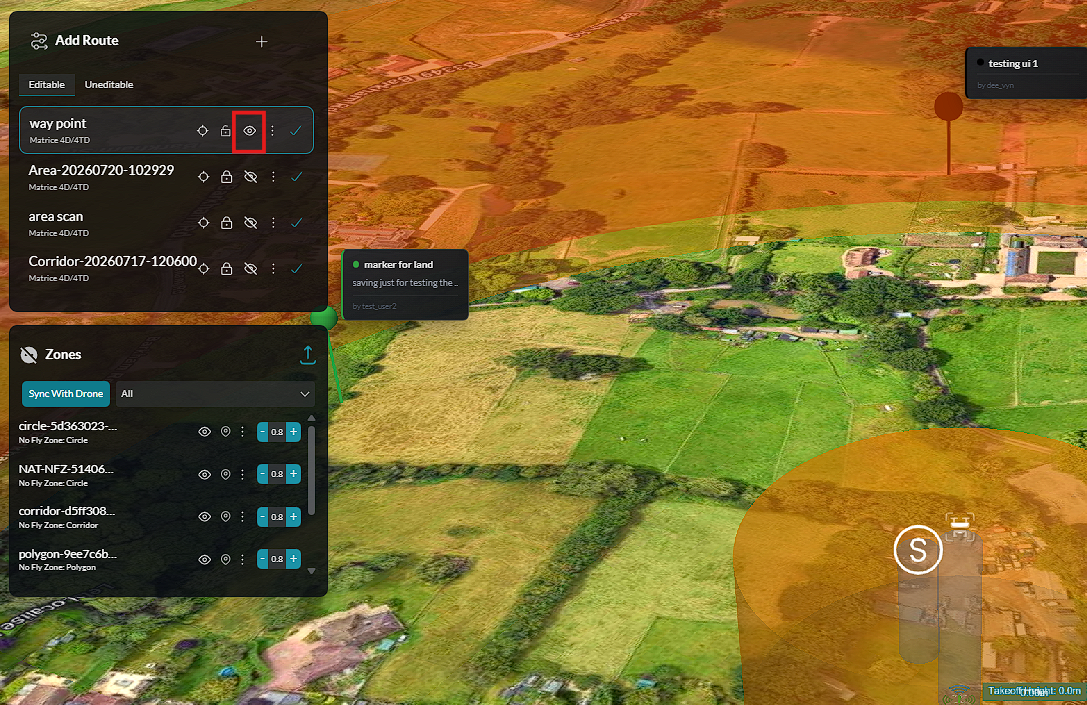
The mission is created with Visibility turned Off by default. Toggle visibility On to make the mission visible on the map.
-
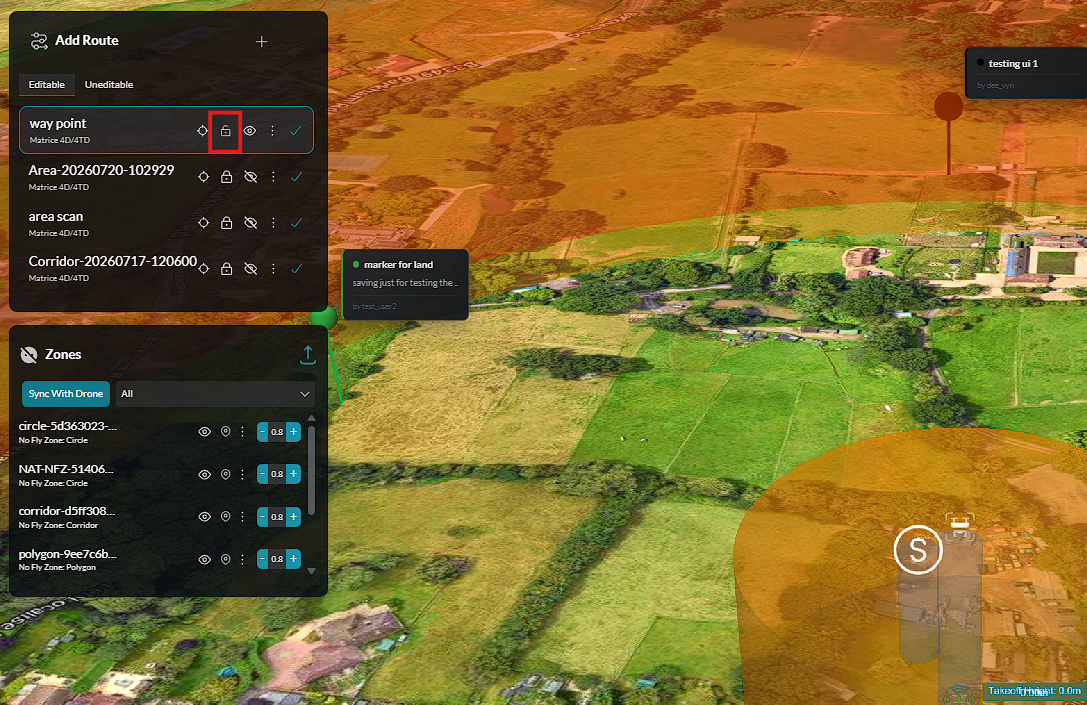
Enable Edit Mode by unlocking the mission.
-
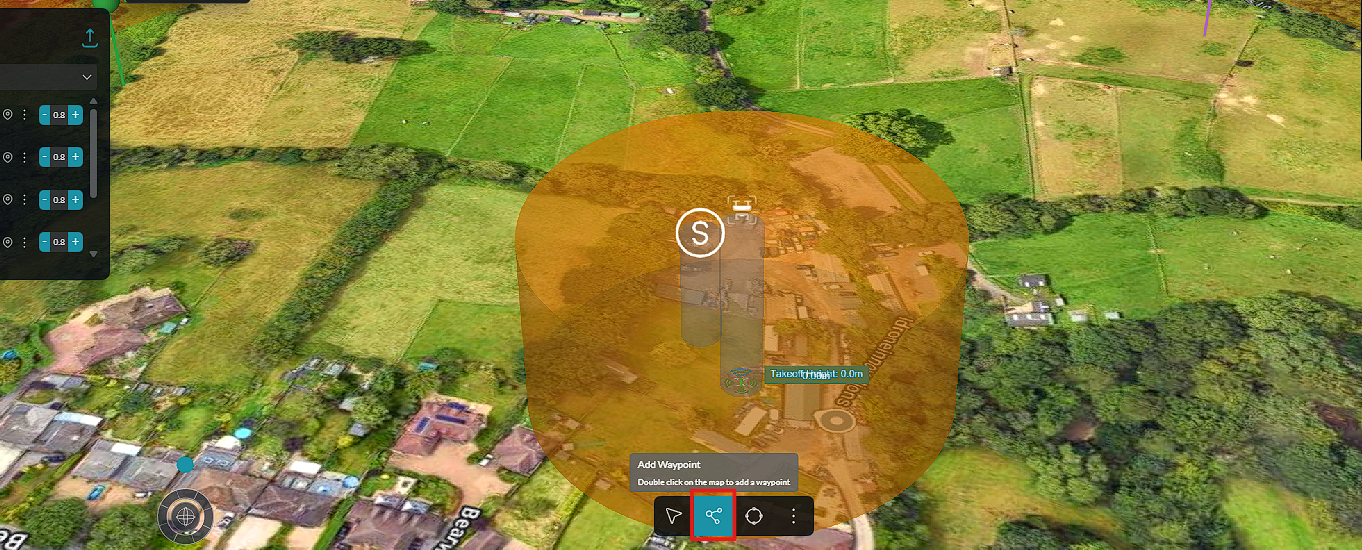
Select the Add Waypoint tool.
-
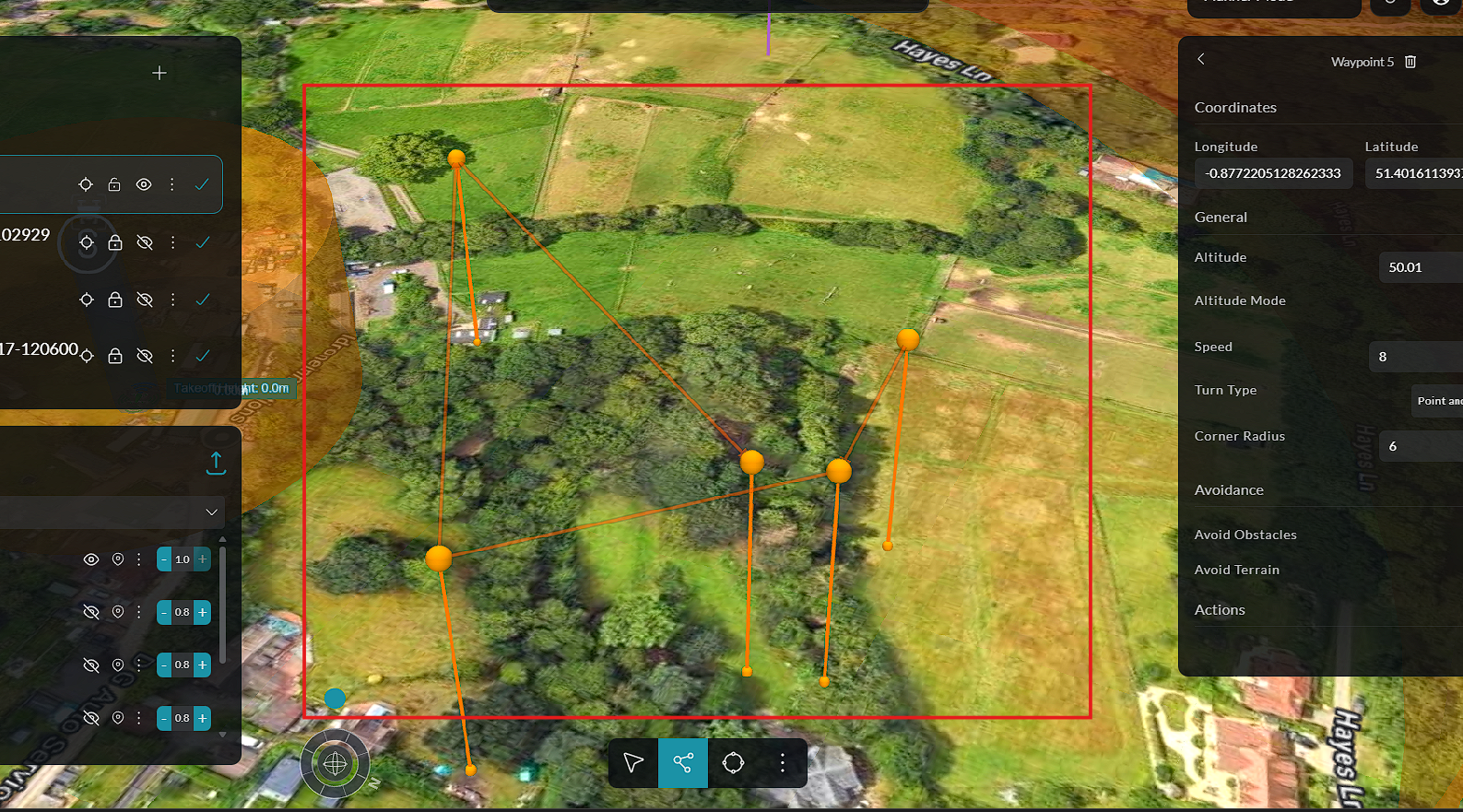
Double-click on the map to place waypoints and define the flight path.
-
Continue adding waypoints until the required route is complete.
-
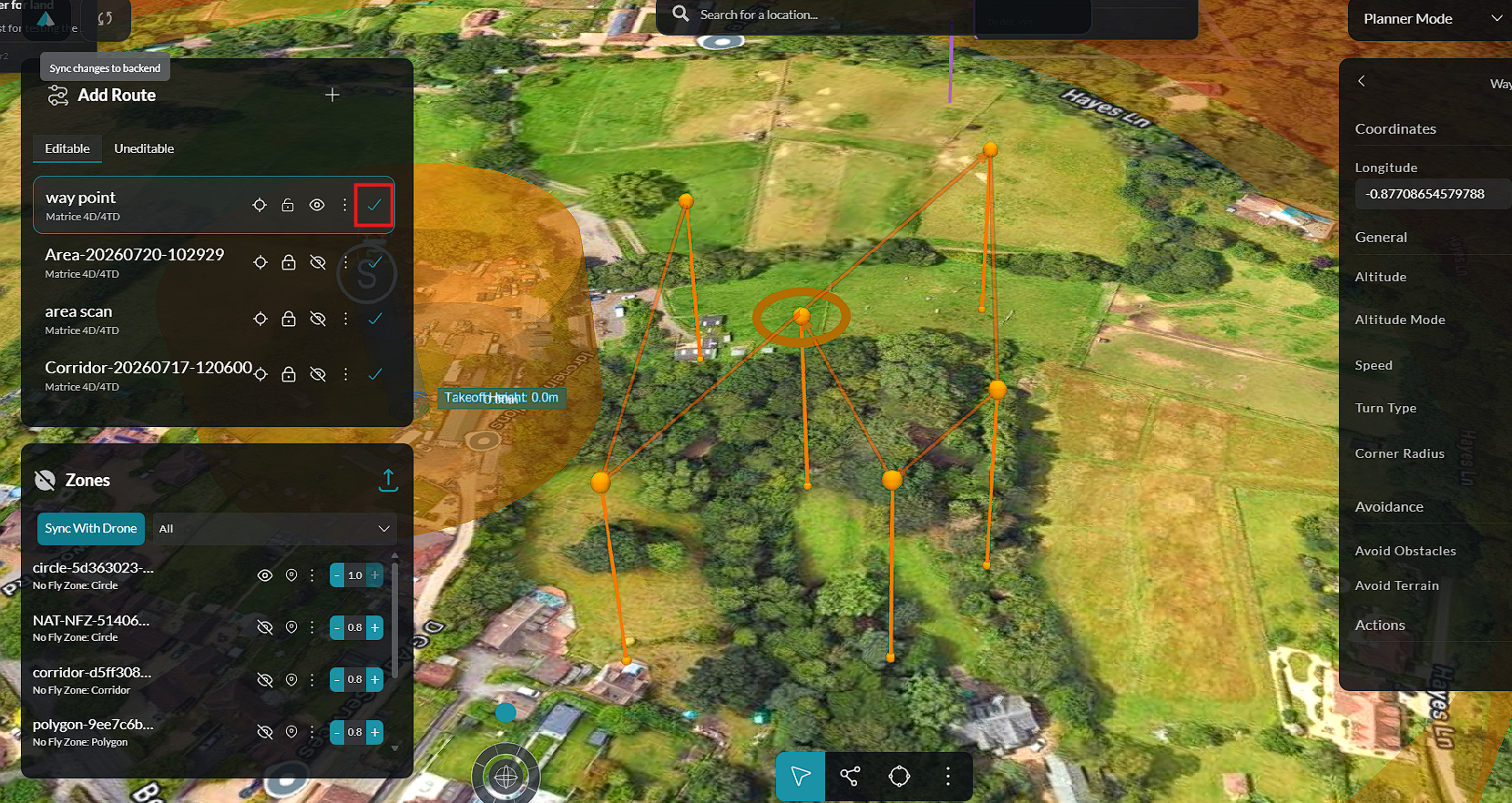
Click Save Plan to save the waypoint mission.
Waypoint Editing Tools
Once a waypoint mission has been created, the following tools are available:
Waypoint Properties
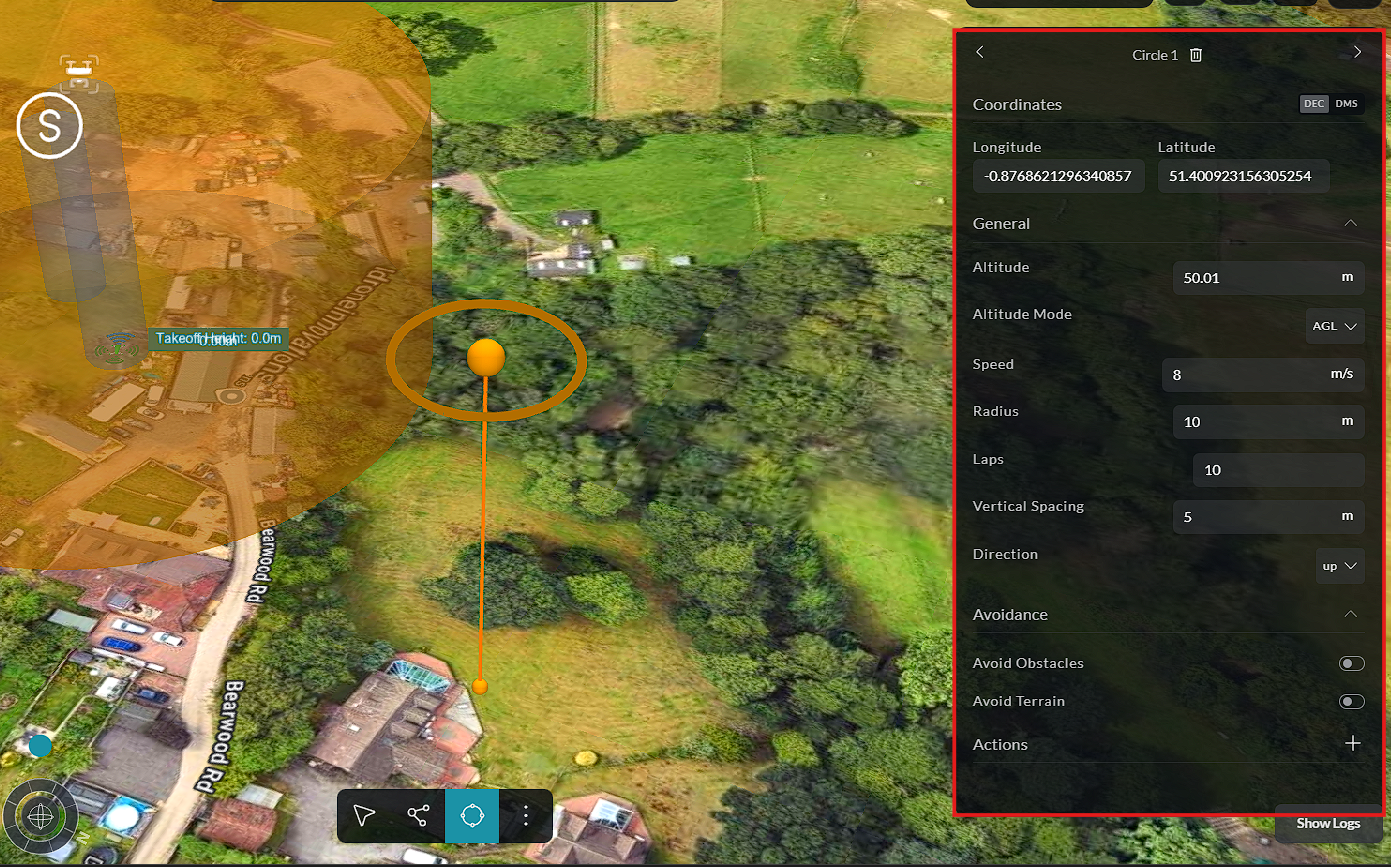
Selecting a waypoint opens the Properties panel, where waypoint-specific settings can be configured.
Circle Tool
The Circle Tool allows the aircraft to perform a circular flight around a selected waypoint. To create a circular pattern:
-
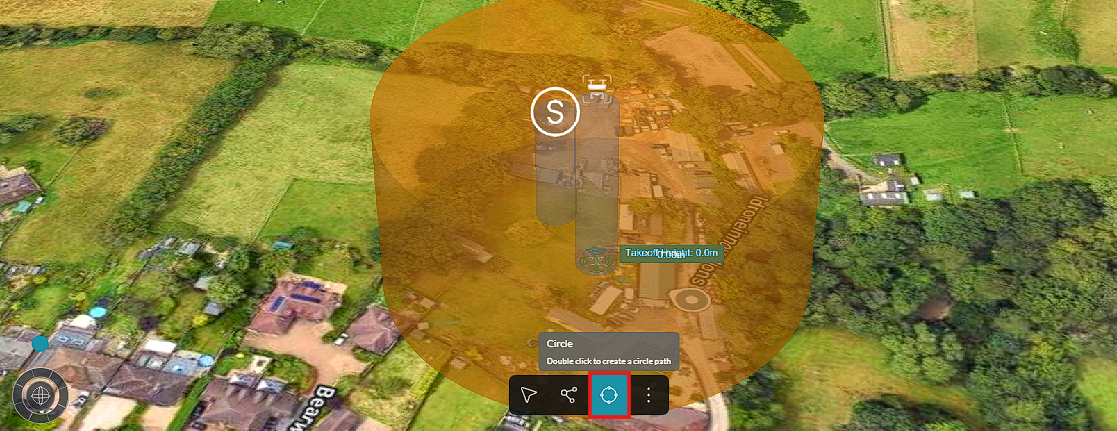
Select the Circle Tool.
-
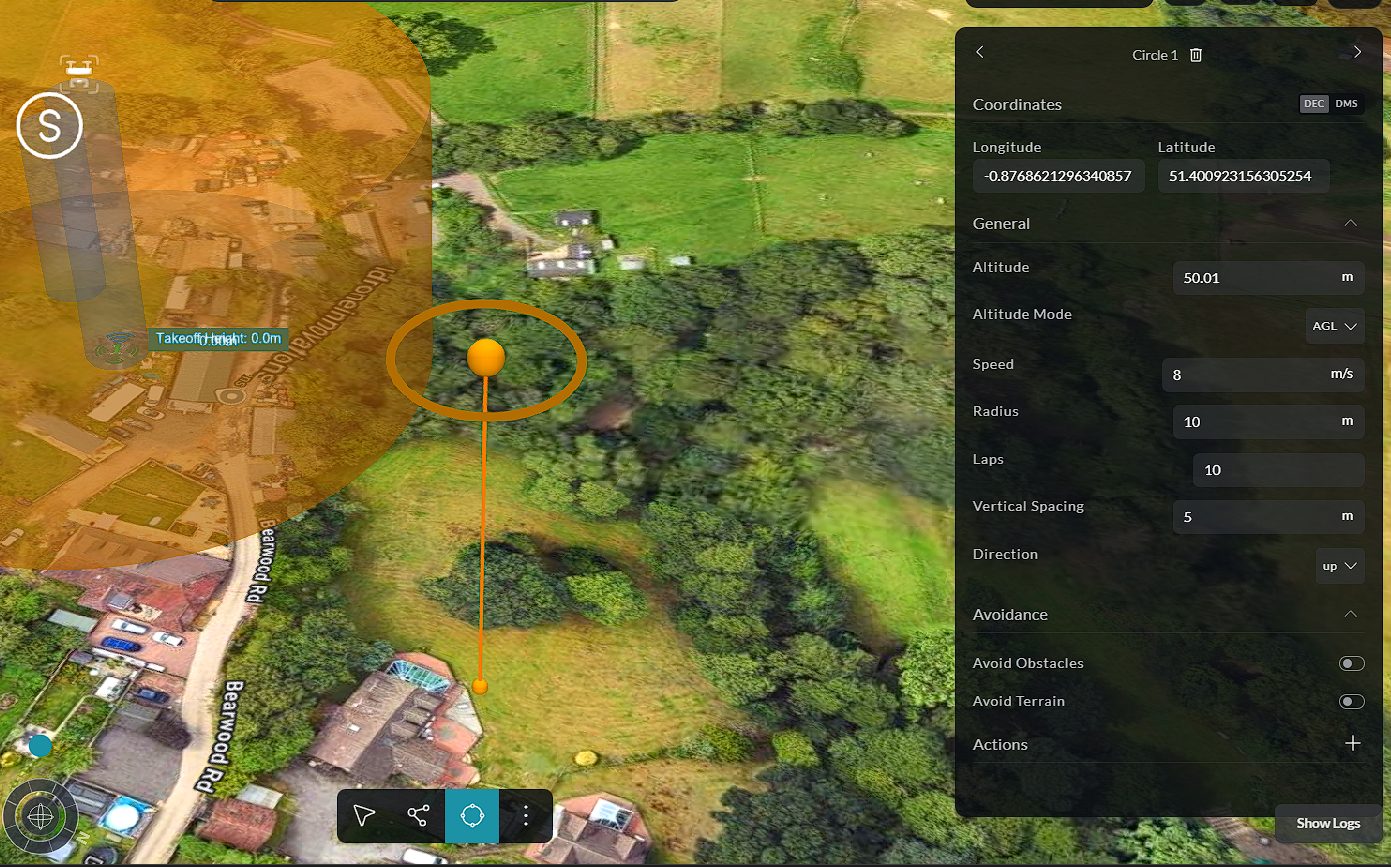
Double-click on the map to add the circular maneuver.
-
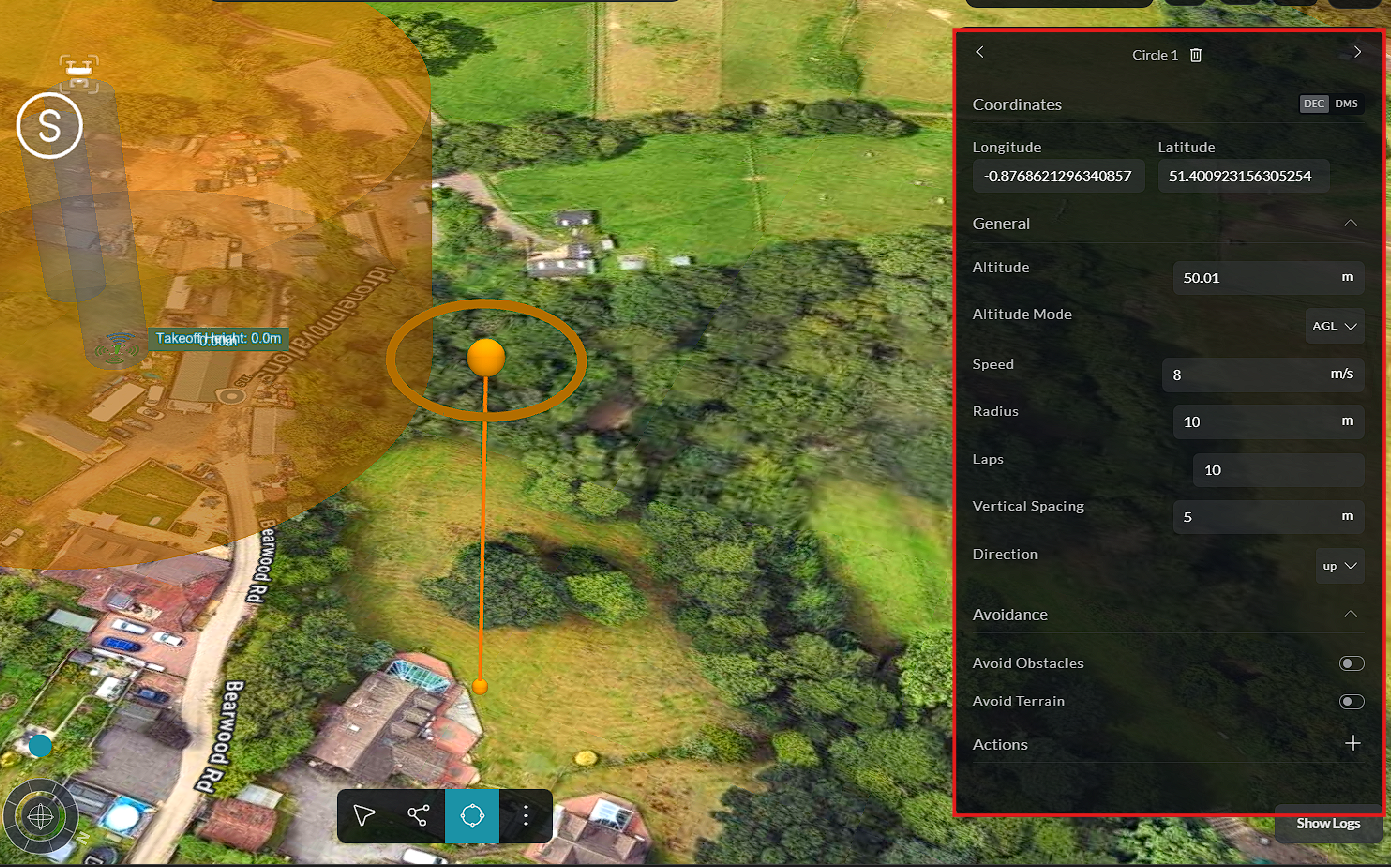
Adjust the circle as required using the available editing controls.
Selection Tool
The Selection Tool allows users to select and modify existing waypoints or other mission elements.
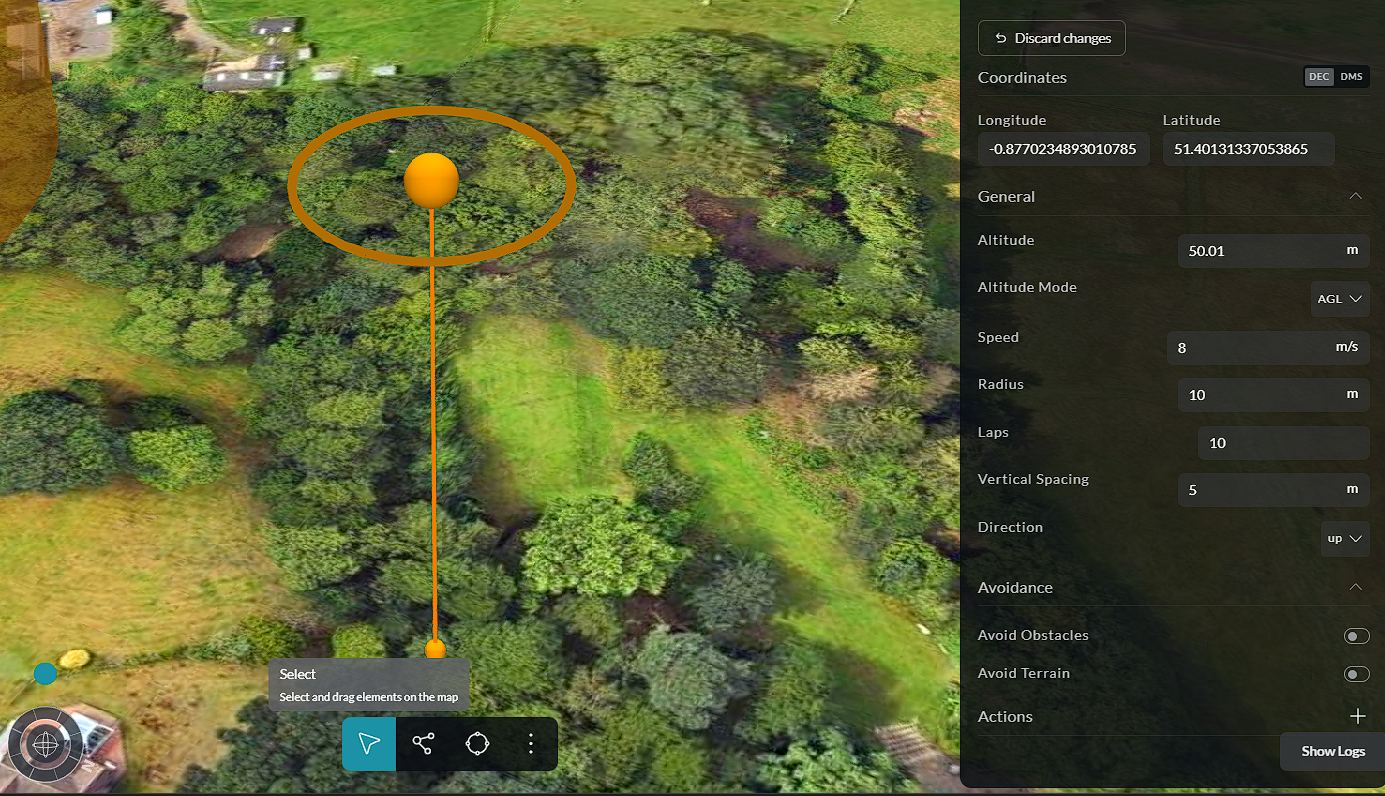
Selected waypoints can be dragged to adjust their position on the map.
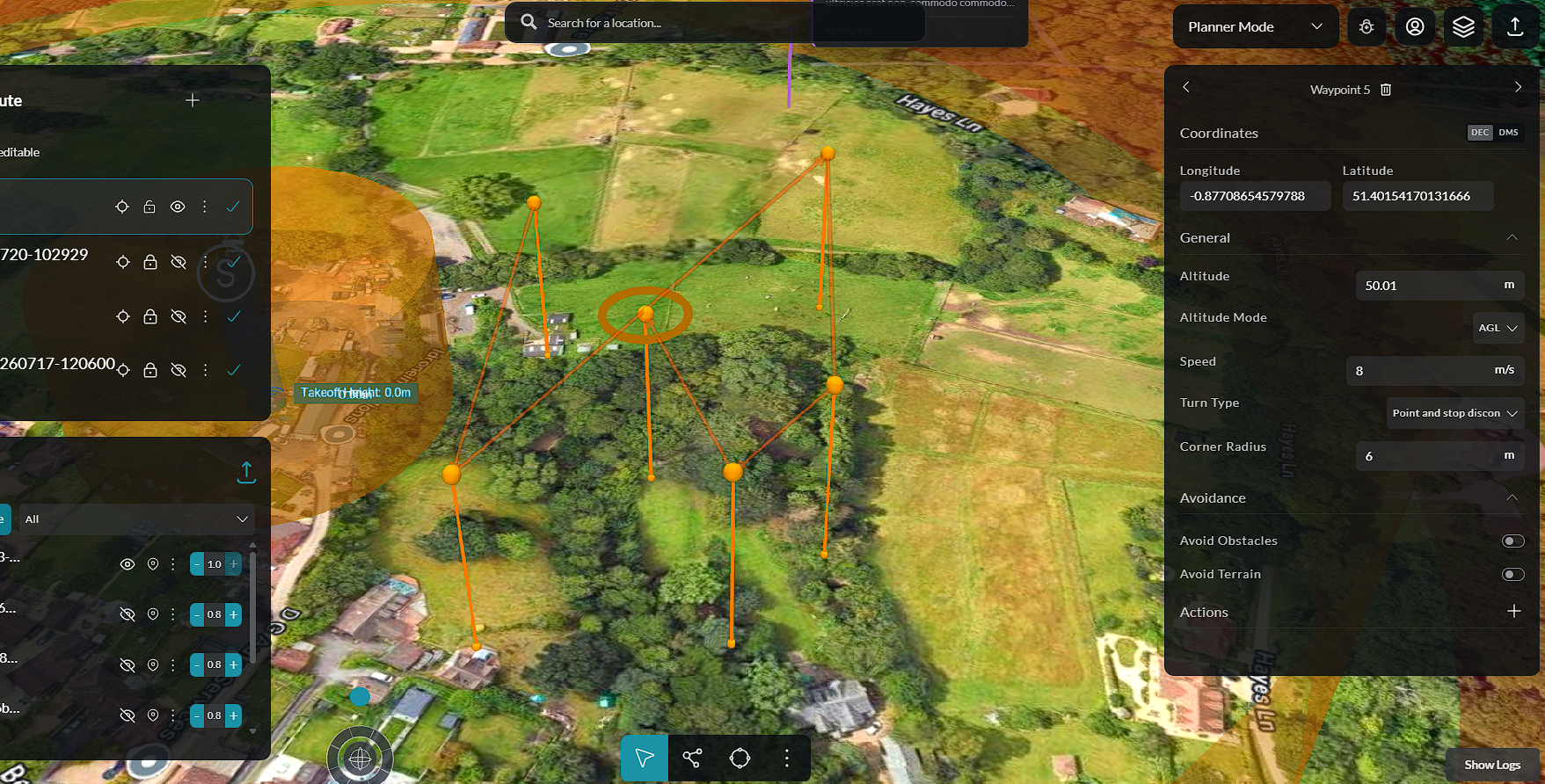
Delete Node
While in Selection and Edit mode, select a waypoint and use the Delete action to remove the selected node from the route.
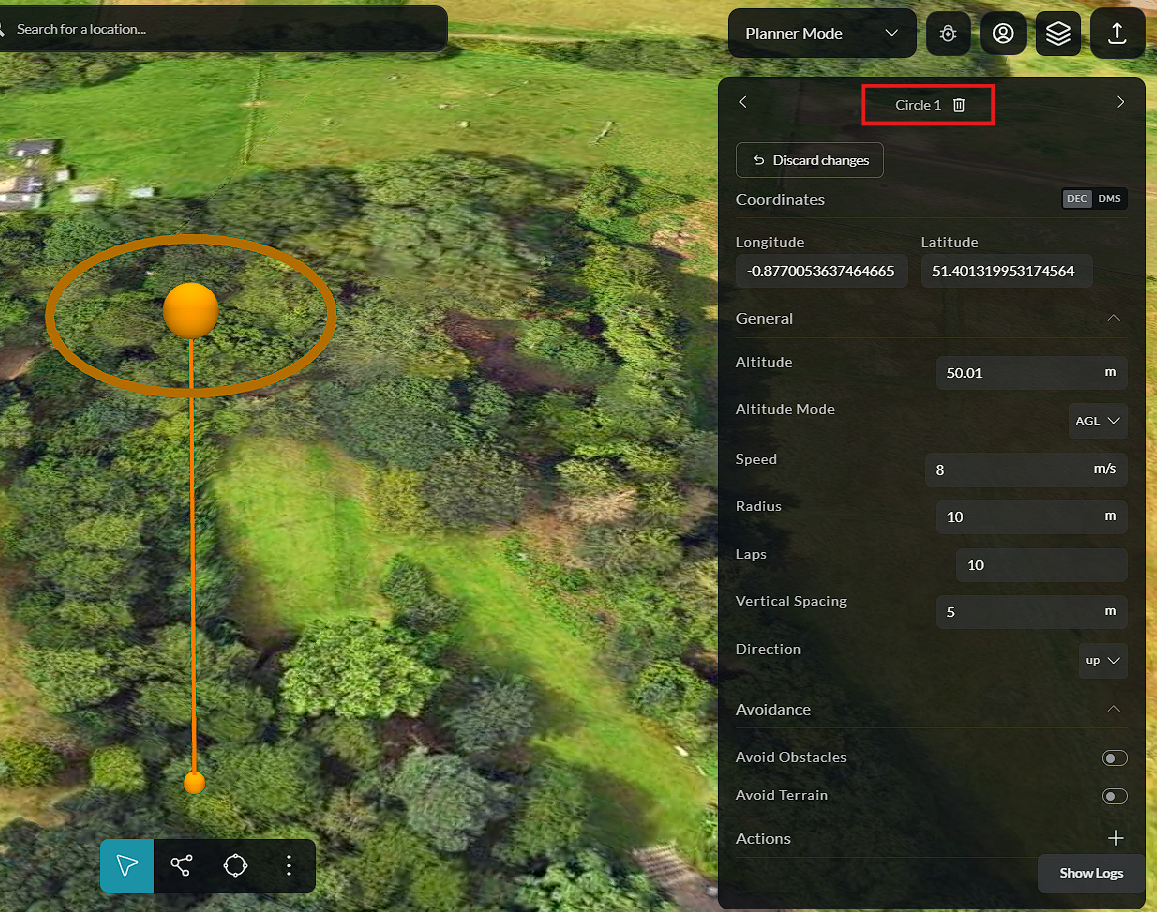
Saving the Mission
After completing or modifying the flight path, click Save Plan to save all waypoint changes before exiting the mission editor.